Fix Issues
Piso WiFi Portal & Pause Utility

Piso WiFi Pause Time: How to Pause, Resume & Save Your Remaining Time

Piso WiFi Pause Time lets users temporarily stop an active internet session so they can return later without intentionally using their remaining session time while they are away.

In this guide, you'll learn how to pause and resume a Piso WiFi session, access the local portal through 10.0.0.1, use Chrome on phones and computers, understand the role of the Piso WiFi Pause Time app, and troubleshoot common problems such as a missing Pause button or a portal that will not open.

Quick note: Pause Time availability and behavior can vary by Piso WiFi platform, firmware, and machine-owner settings.

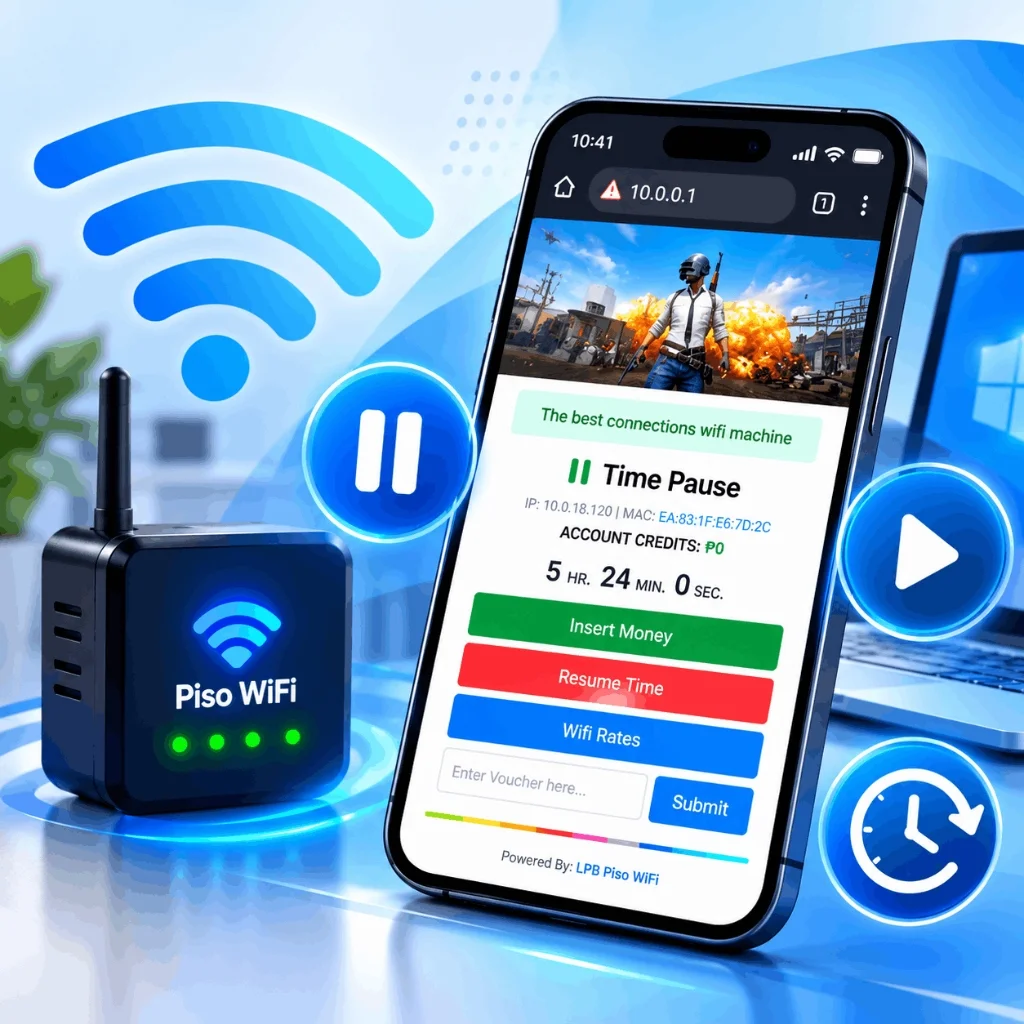
Piso WiFi Pause Time showing the 10.0.0.1 portal and Pause Time button
PISO WIFI PAUSE TIME
Connect↓10.0.0.1↓Start Session↓Pause Time↓Resume Later

What Is Piso WiFi Pause Time?

Piso WiFi Pause Time is a feature that allows an active timed Piso WiFi session to be temporarily paused. Instead of leaving an active session running while you are away, you can use the Pause Time control when it is available on the machine.

A typical Piso WiFi session works through a local portal where you connect to the machine, pay or enter an available access code, and receive a limited amount of internet time. The 10.0.0.1 portal then displays your session status and remaining time.

When Pause Time is supported and enabled, selecting Pause Time temporarily stops the session according to the rules configured by the machine operator. You can then return to the portal and use Resume Time or a similar control to continue.

Important: Pause Time does not create additional paid minutes. It is intended to preserve the remaining session time according to the machine's configuration.

How to Pause and Resume Piso WiFi Time

Follow this essential step-by-step walkthrough to successfully halt your countdown timer and resume without losing session minutes.

Step 1

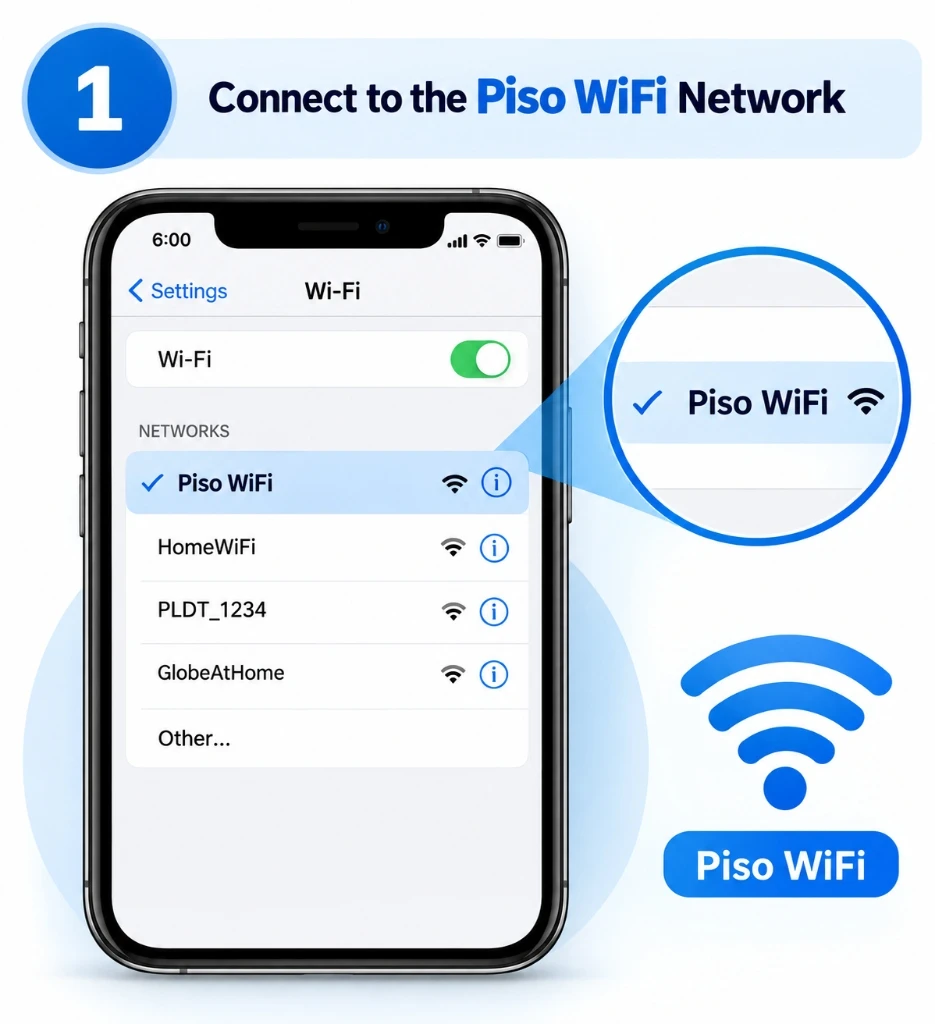
Connect to the Piso WiFi Network

Open your device's Wi-Fi settings and select the Piso WiFi network provided by the machine. The network name can vary depending on the operator and system. After connecting, stay connected to the Piso WiFi network while accessing its local portal.

Step 1: Connecting to the Piso WiFi Network on smartphone Wi-Fi settings
Step 2

Open the Piso WiFi Portal

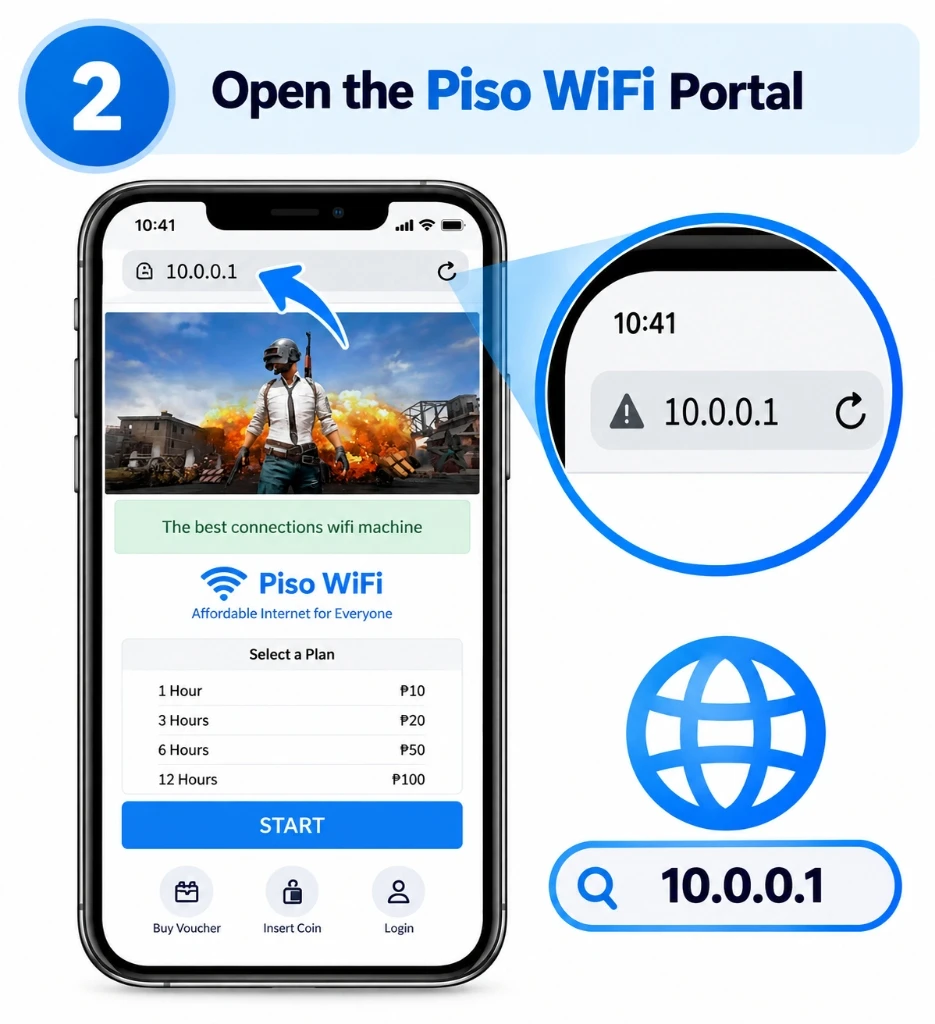
Open Chrome, Safari, or another browser and enter http://10.0.0.1 directly into the browser's address bar rather than searching for it on Google.

If 10.0.0.1 does not open, use our troubleshooting guide to check your network connection and gateway address.

Step 2: Entering 10.0.0.1 in mobile browser address bar to open Piso WiFi portal
Step 3

Start Your Piso WiFi Session

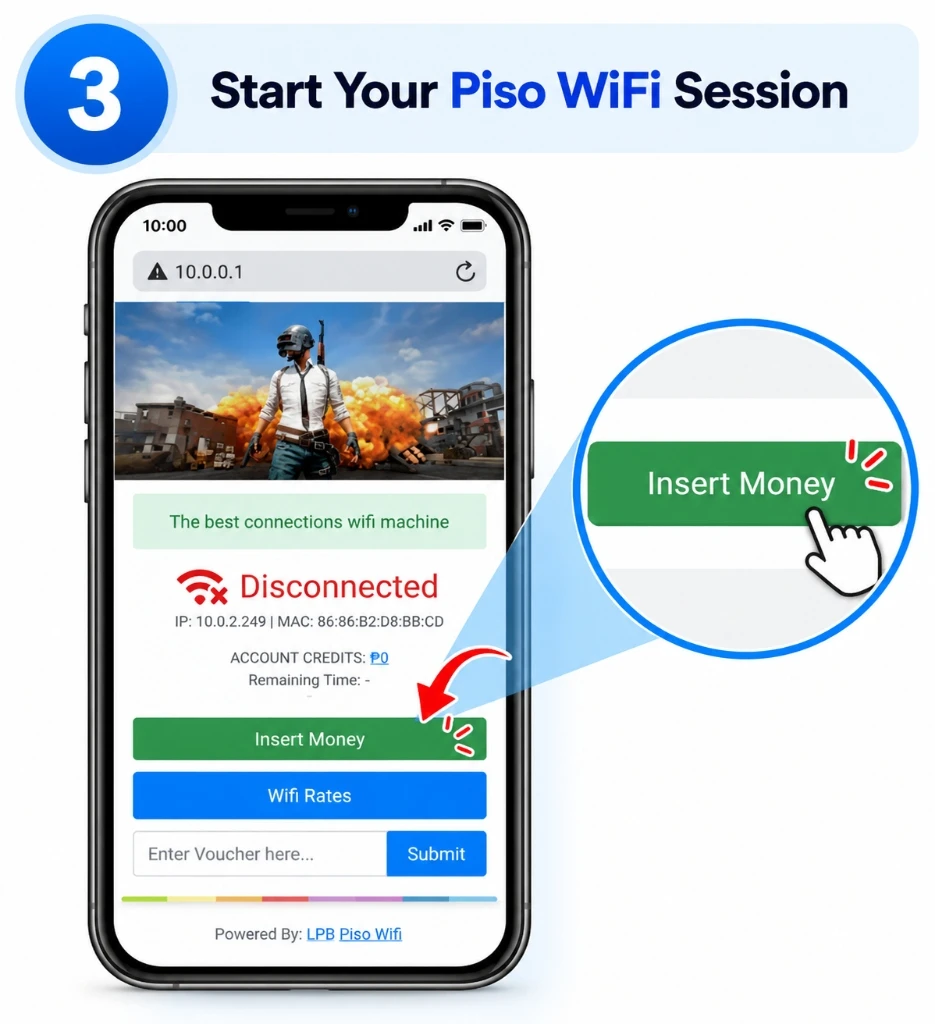
Follow the payment or access instructions shown by the machine. Depending on the system, the portal may provide options such as coin payment, voucher access, or supported digital payment methods. Once your session starts, check that the timer or remaining-time information is visible.

Important note: Payment methods and portal options depend on the individual Piso WiFi machine and operator configuration.
Step 3: Starting Piso WiFi session by tapping Insert Money or entering voucher
Step 4

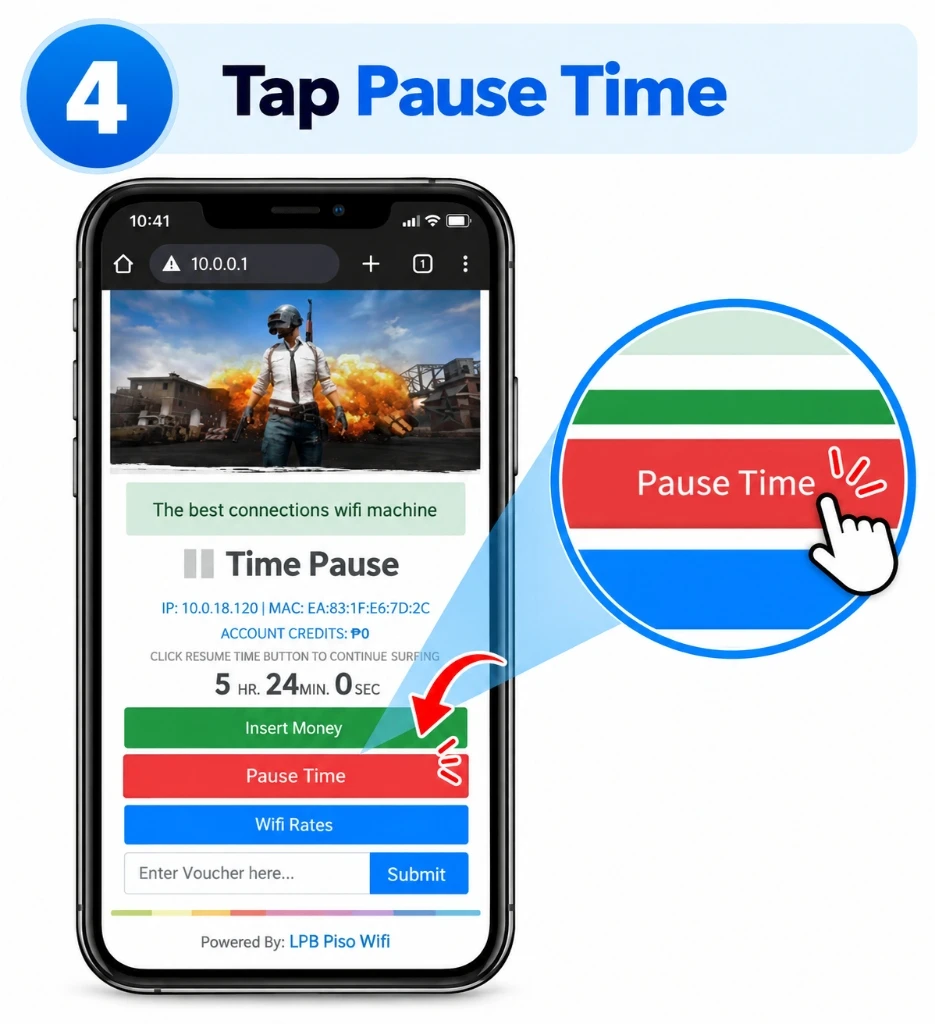
Tap Pause Time

When you need to stop temporarily, select the Pause Time button if it is available. Before leaving the machine's Wi-Fi area, verify that the portal shows the session as paused.

Step 4: Tapping the Pause Time button on the 10.0.0.1 Piso WiFi portal
Step 5

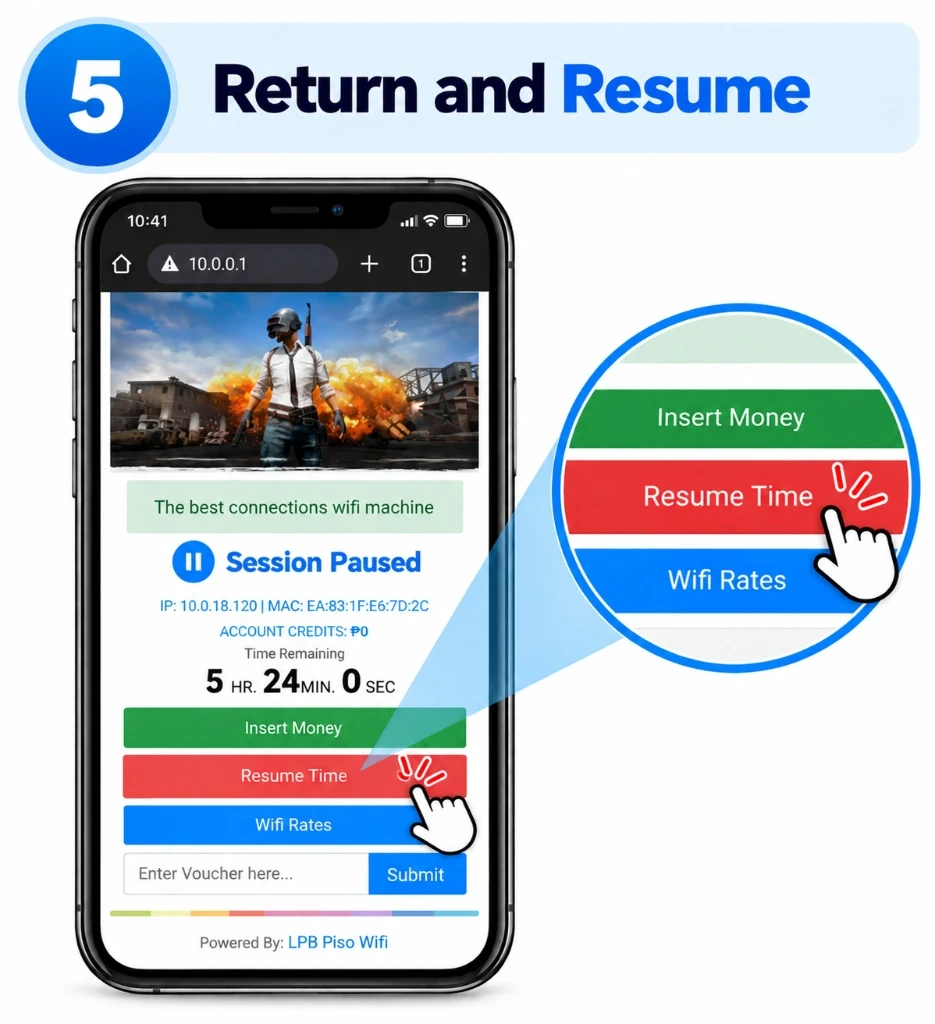
Return and Resume

When you are ready to continue, reconnect to the same Piso WiFi network if necessary and return to the local portal. Select Resume Time, Resume, or the equivalent control provided by your system.

Step 5: Reconnecting to Piso WiFi and tapping Resume Time on paused session

10.0.0.1 Piso WiFi Pause Time

Understanding the default router gateway address and customer portal navigation.

10.0.0.1 is a private local-network address that may be used as the gateway or portal address for a Piso WiFi setup.

When your device is connected to the correct Piso WiFi network, entering the machine's local gateway address in a browser can take you to the customer portal. For many setups, users encounter:

http://10.0.0.1

The exact gateway can vary, however, so if this address does not work, do not assume that adding or removing zeros will solve the problem. Check the network's actual gateway/router address or ask the machine operator.

Quick Gateway Reference

User needs to...What to try
Open customer portalhttp://10.0.0.1
Access admin panelUsually a separate admin path/configuration
Cannot open portalCheck connection and gateway
Unsure of IPCheck device Wi-Fi network details

Chrome Piso WiFi Pause Time

Google Chrome is commonly used to access web-based Piso WiFi captive portals on mobile phones and computers.

To use Chrome:

  1. 1Connect to the Piso WiFi network.
  2. 2Open Chrome.
  3. 3Enter the local portal address directly (http://10.0.0.1).
  4. 4Wait for the session page to load.
  5. 5Start or access your session.
  6. 6Select Pause Time when available.
Android Chrome

Connect to Wi-Fi → Chrome → local portal

Samsung Chrome

Connect → Chrome → local portal

Windows Chrome

Connect → Chrome/Edge → local portal

If Chrome does not open the portal:

  • Confirm you are connected to the Piso WiFi network.
  • Enter the address directly (http://10.0.0.1) instead of using Google Search.
  • Temporarily disable a VPN if it is interfering with local-network access.
  • Try another browser (e.g. Safari, Edge, or Firefox).
  • Check the device's network/gateway information in Wi-Fi settings.

Piso WiFi Pause Time App

Understanding official browser portals versus third-party mobile apps and APK safety.

People often search for a Piso WiFi Pause Time App, but the way users access a Piso WiFi system depends on the machine, platform, and operator setup.

Some Piso WiFi experiences are browser-based, while specific systems may provide additional app-based tools or interfaces. If you are looking for an app, first determine which Piso WiFi system the machine uses rather than downloading an unknown APK from an untrusted website.

Android

Use the available browser or supported application provided by the system.

iPhone

Use Safari/Chrome or the supported system interface.

App Safety

Avoid unknown downloads claiming to provide access to a Piso WiFi machine.

Piso WiFi Access Structure
Mobile Device
→
Browser / Supported App
→
10.0.0.1
→
Pause Time

LPB Piso WiFi Pause Time

Understanding LPB software configurations, portal layout, and session controls.

LPB is one of the Piso WiFi systems users may encounter when accessing a timed Wi-Fi vending service. If your machine uses LPB, the portal interface and location of controls can differ from other Piso WiFi platforms.

Look for the session timer and a Pause Time, Resume Time, or equivalent control when the feature is enabled. If the Pause button is not visible, the feature may be disabled or restricted by the machine's configuration.

LPB User

Pause and resume your active session.

LPB Portal

Access the local customer interface.

LPB Owner

Configure available portal features according to the machine's settings.

LPB Piso WiFi Customer Interface (Example)● Wi-Fi Connected
Session Balance
01:15:40
⏸ Pause Time▶ Resume Time

Piso WiFi Pause Time by Platform

Understanding how pause and resume capabilities differ across common vending platforms and operator configurations.

Platform/SystemHow Users Access ItPause TimeResumeImportant Note
LPB Piso WiFiWeb portal on supported setupDepends on configurationAvailable when pause feature is activeOperator settings can affect availability
AdoPiSoftWeb portalDepends on installation/settingsDepends on interfaceFeatures may vary by configuration
PisoFiWeb/app interface depending on setupDepends on system configurationDepends on interfaceCheck the machine's instructions
JuanFiOperator-configured portalVariesVariesOpen-source/custom configurations can differ

There is no single interface that looks exactly the same on every Piso WiFi machine. If the Pause Time button, portal address, or session controls differ from this guide, follow the instructions displayed by the machine or ask the operator.

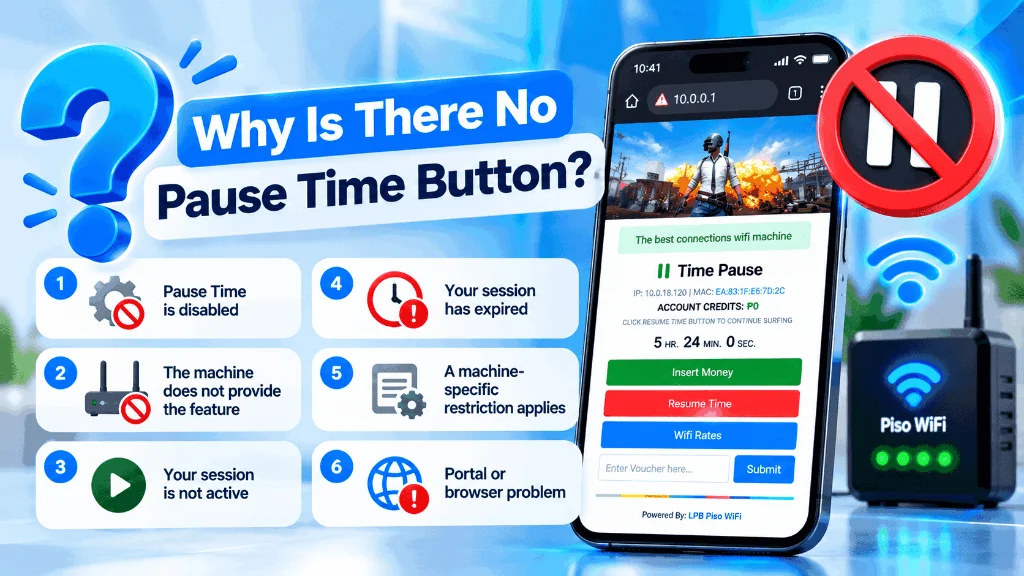
Why Is There No Pause Time Button?

The missing Pause button is a frequent issue. If you cannot find the button on your portal, check these 6 primary causes.

1

Pause Time is disabled

The machine owner may have disabled the feature in the admin panel.

2

The machine does not provide the feature

Not every hardware or software setup necessarily has the same functionality.

3

Your session is not active

The Pause control may only appear after a valid session begins with inserted coins or voucher.

4

Your session has expired

An expired session cannot normally be paused once the timer hits zero.

5

A machine-specific restriction applies

The operator may configure pause limits or minimum remaining-time conditions.

6

Portal or browser problem

A loading or browser cache issue may prevent the session controls from displaying correctly.

Piso WiFi Pause Time button missing decision tree flowchart
Pause button missing? Don't keep refreshing randomly. Check the machine configuration and troubleshoot the portal first.
Fix Piso WiFi Pause Time Problems →

10.0.0.1 Piso WiFi Portal Not Opening?

Follow this quick 5-point checklist if your browser fails to load the local captive portal.

1

Check Wi-Fi

Make sure your device is actually connected to the Piso WiFi network.

2

Type the address directly

Enter http://10.0.0.1 in the browser address bar, not the search engine.

3

Check VPN

A VPN may interfere with access to a local network portal. Turn it off temporarily.

4

Check your gateway

Your device's Wi-Fi details may show the router/gateway address being used by the network.

5

Try another browser

If the page does not load in one browser, test another browser (e.g. Safari, Chrome, Edge).

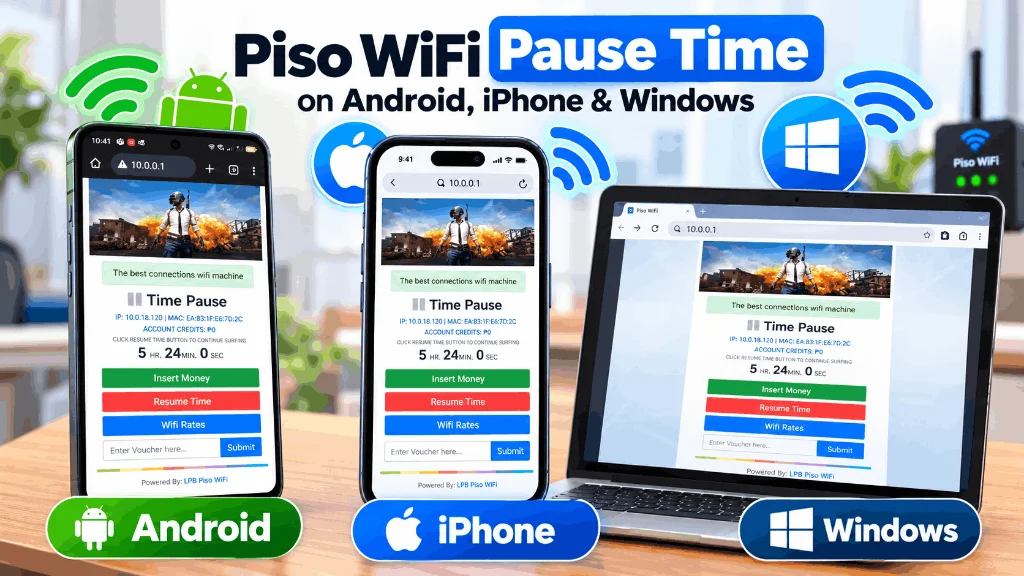
Piso WiFi Pause Time on Android, iPhone & Windows

Platform-specific connection and pause instructions for your phone, tablet, or PC.

Android

  1. Open Wi-Fi settings.
  2. Connect to the Piso WiFi network.
  3. Open Chrome.
  4. Enter the local portal address (http://10.0.0.1).
  5. Start or access your session.
  6. Use Pause Time when available.

iPhone

  1. Open Settings → Wi-Fi.
  2. Connect to the Piso WiFi network.
  3. Open Safari or Chrome.
  4. Enter the portal address (http://10.0.0.1).
  5. Access your session.
  6. Use Pause Time when available.

Windows

  1. Connect to the Piso WiFi network.
  2. Open Chrome or Edge.
  3. Enter the local portal address (http://10.0.0.1).
  4. Start or access the session.
  5. Select Pause Time when available.
Piso WiFi Pause Time on Android, iPhone & Windows devices walkthrough

Does Disconnecting From Piso WiFi Pause Your Time?

Simply leaving the Wi-Fi network should not be treated as the same thing as using the Pause Time feature.

If the machine provides a Pause Time control, use that control before stepping away. The exact session behavior can depend on the Piso WiFi system and its configuration, so users should not assume that turning Wi-Fi off automatically preserves their remaining session.

Best practice: If you want to temporarily stop an active session, use the machine's Pause Time control when it is available.

Can I Transfer Piso WiFi Time to Another Phone?

Do not assume that a paid Piso WiFi session can be moved freely from one device to another. Session identification and transfer behavior depend on the platform and machine configuration.

If you change devices, lose your connection, or replace your phone, the safest option is to check the machine's instructions or contact the operator.

Can I resume on another phone?

Not necessarily. A Piso WiFi system may associate a session with the original device hardware MAC address or local session cookie. Check the specific system before assuming a transfer is possible.

Is Piso WiFi Safe to Use?

Piso WiFi is a public/shared network, so users should treat it differently from a trusted private home or office network.

For ordinary browsing, use normal security precautions. Avoid entering sensitive banking credentials or other highly confidential information on an unfamiliar public network.

Essential Security Checklist

  • Avoid sensitive transactions on unfamiliar public Wi-Fi.
  • Keep your phone and browser updated.
  • Do not install unknown APK files claiming to be a Piso WiFi app.
  • Do not share passwords or private account information.
  • Check that websites handling sensitive information use HTTPS.
  • Disconnect from the network when you no longer need it.
Operator Administration

Piso WiFi Pause Time for Vendo Owners

If you operate a Piso WiFi machine, Pause Time can be part of the customer portal configuration. The exact settings depend on your platform and installation.

Enable Pause Time

Learn where the feature may be configured.

Manage Portal Settings

Understand customer-facing controls such as available session options.

Troubleshoot Customer Problems

Find solutions when customers cannot see or use the Pause option.

⚠️Important: Do not change router or admin settings unless you manage the machine or have permission from its owner.

Piso WiFi Pause Time Problems? Start Here

Direct routes to resolve the most common connection and portal barriers.

Pause button missing

Possible configuration or session issue.

Troubleshooting →

10.0.0.1 won't open

Check Wi-Fi, gateway, VPN and browser.

10.0.0.1 Guide →

Pause isn't working

Check whether the machine supports and enables the feature.

Troubleshooting →

Need Chrome instructions

Use the browser-specific guide.

Chrome Guide →

Complete Piso WiFi Pause Time Guides

Choose the guide that matches what you are trying to do. Each guide focuses on a specific part of Piso WiFi Pause Time so you can find the information you need without searching through unrelated instructions.

Piso WiFi Pause Time

Learn how Pause Time works, how to pause and resume a session, and how to avoid losing unused session time.

10.0.0.1 Piso WiFi Pause Time

Learn how to access the local portal, use 10.0.0.1, and troubleshoot portal-access problems.

Chrome Piso WiFi Pause Time

Learn how to access and use Piso WiFi through Chrome on supported devices.

Piso WiFi Pause Time App

Understand app-based and browser-based access options for Android and iPhone.

LPB Piso WiFi Pause Time

Learn about Pause Time on LPB Piso WiFi systems and common access issues.

Piso WiFi Pause Time Troubleshooting

Fix common issues involving the Pause button, 10.0.0.1 portal, session access and browser problems.

Piso WiFi Device Guides

Step-by-step connection, login, and pause procedures for Android, iPhone, Windows, and Mac devices.

Frequently Asked Questions About Piso WiFi Pause Time

Clear, authoritative answers to the most common questions regarding Piso WiFi session management.

Piso WiFi Pause Time is a feature that can temporarily stop an active timed session when the feature is supported and enabled by the machine.
Connect to the Piso WiFi network, open the local portal, start your session, and select Pause Time when the button is available.
Return to the Piso WiFi portal and select Resume Time, Resume, or the equivalent control provided by the machine.
10.0.0.1 is a private local-network address commonly used as a gateway or portal address in some Piso WiFi setups.
First confirm that you are connected to the correct Piso WiFi network. Then enter the address directly, check for VPN interference, and verify the actual gateway address used by the network.
The feature may be disabled, unavailable on that setup, restricted by configuration, or affected by a portal/session issue.
Yes, where the Piso WiFi portal is web-based and accessible through Chrome. Enter the local portal address directly in Chrome. Learn more in the Chrome Guide →
App availability depends on the Piso WiFi system. Some access experiences are browser-based, so users should identify their specific system before downloading an app. See App Guide →
If the machine provides a web-based portal, iPhone users can access it through a supported browser after connecting to the Piso WiFi network.
Yes, where the machine provides the feature and the portal is accessible from the Android device.
Do not assume that disconnecting from Wi-Fi is equivalent to using Pause Time. Use the Pause Time control when it is available.
Transfer behavior depends on the system and session configuration. Do not assume that a paid session can be moved to another device.
Check whether the machine supports the feature, whether the Pause button is enabled, whether your session is active, and whether the portal is loading correctly. View Troubleshooting Guide →
Need Immediate Assistance?

Need Help With Piso WiFi Pause Time?

Whether you are trying to pause your remaining time, open the 10.0.0.1 portal, use Chrome, understand the Piso WiFi Pause Time App, or troubleshoot a missing Pause button, start with the guide that matches your problem.