
Chrome Piso WiFi Pause Time: How to Access, Pause & Resume
You can use Google Chrome to access a web-based Piso WiFi portal, check your active session countdown, and use Pause Time when the feature is enabled by the machine operator.
The basic process is simple: connect to the Piso WiFi network, open Chrome, enter the local portal address such as http://10.0.0.1, start your session, and tap Pause Time when you need to temporarily stop it.
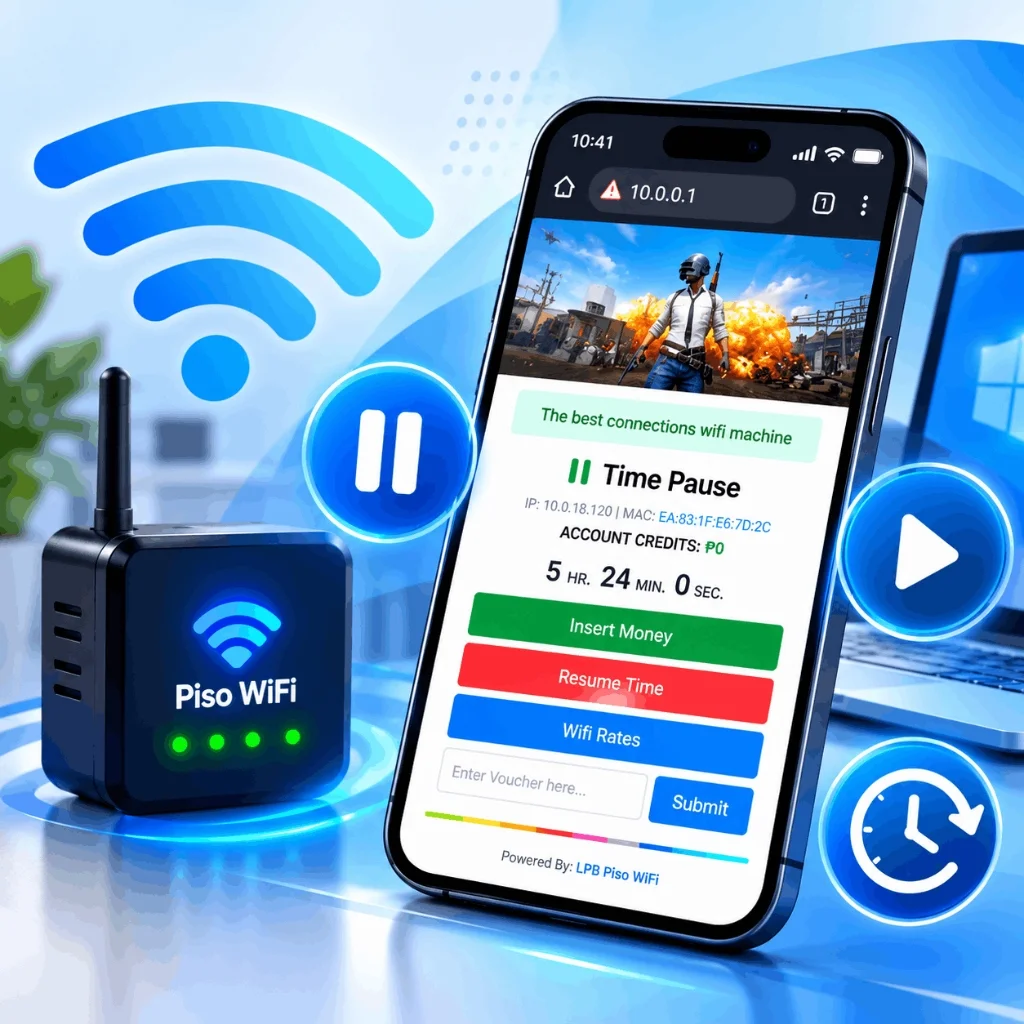
How Do I Use Chrome for Piso WiFi Pause Time?
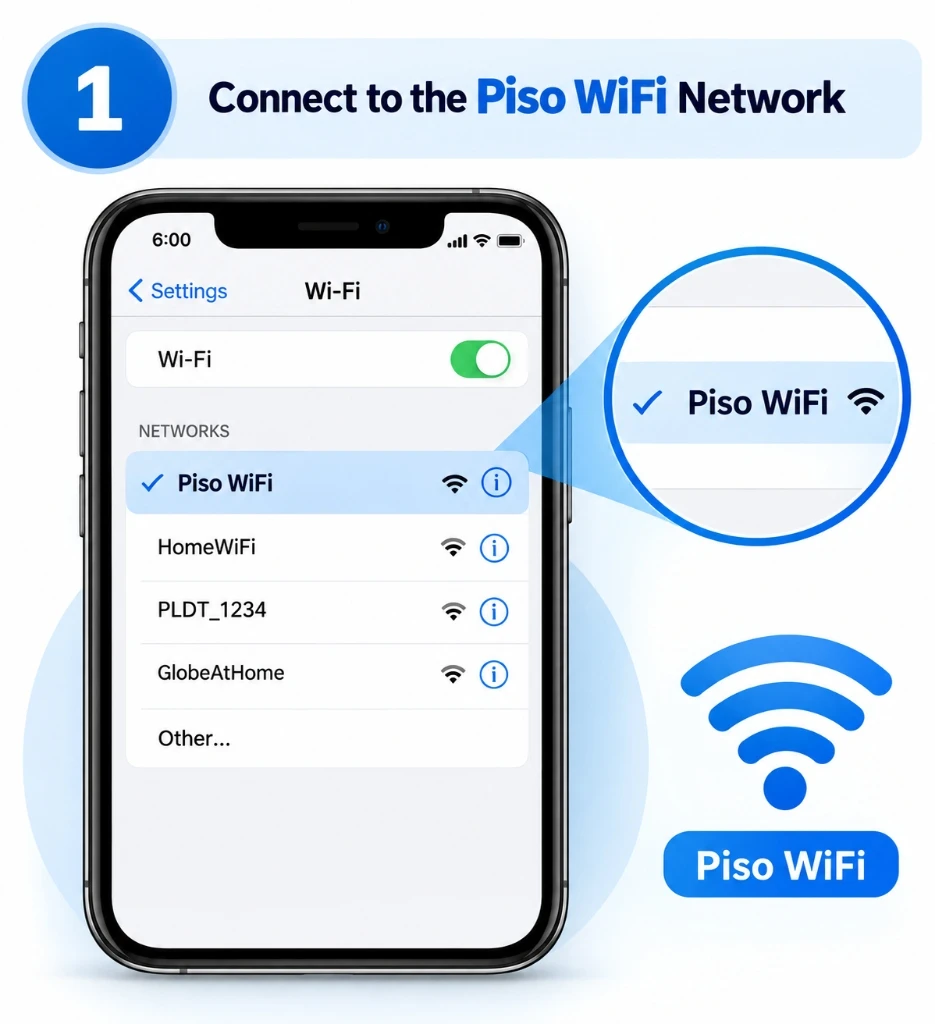
- 1Connect your smartphone, tablet, or laptop to the local Piso WiFi network.
- 2Launch the Google Chrome app on your device.
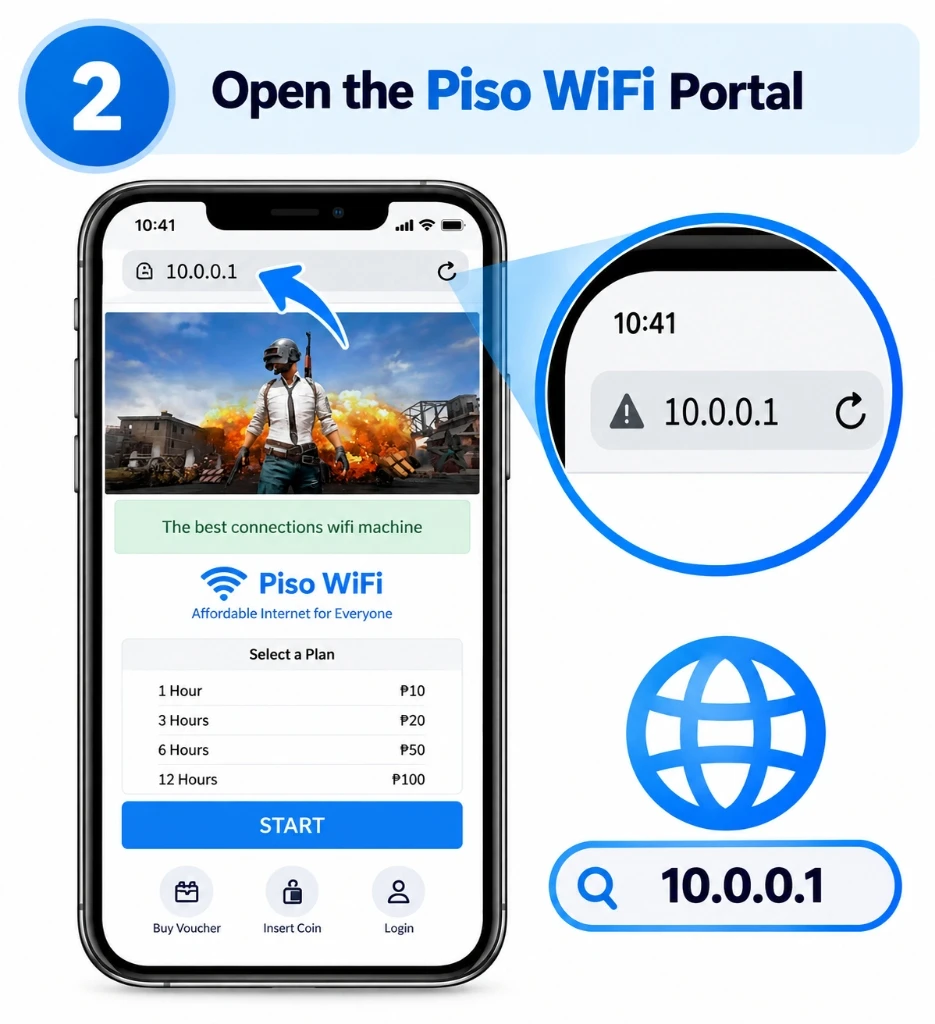
- 3Enter the local portal address directly into Chrome's topmost URL address bar.
- 4If the machine uses the standard gateway, enter http://10.0.0.1.
- 5Start your Piso WiFi session using coins or a voucher pin.
- 6When you need to stop surfing, select Pause Time on the active dashboard.
- 7Return to Chrome later and select Resume Time to continue.
What Is Chrome Piso WiFi Pause Time?
Chrome Piso WiFi Pause Time refers to using the Google Chrome browser to access a local Piso WiFi captive portal and utilize its Pause Time controls when supported by the vendo hardware.
It is essential to understand that Chrome itself does not create or invent the Pause Time feature. The feature is powered by the machine's router firmware (such as LPB Piso WiFi or AdoPiSoft). Chrome simply acts as the viewport through which you view and click the controls. Changing browsers will not add a Pause button if the machine owner has disabled it.
How Does Piso WiFi Pause Time Work in Chrome?
A smooth 5-stage progression from Wi-Fi association to session pausing.
Connect
Connect device to the local Piso WiFi hotspot SSID.
Open Chrome
Launch Google Chrome on Android, iPhone, Samsung, or PC.
Open Portal
Enter http://10.0.0.1 in Chrome address bar.
Start Session
Insert coins or submit voucher pin to activate minutes.
Pause / Resume
Use the Pause Time button to halt and resume countdown.
Connect to Piso WiFi Network First
Before Chrome can communicate with the local gateway, your device must be linked to the wireless antenna of the machine.
🤖 Android
Open Settings → Wi-Fi → tap the Piso WiFi network to associate.
📱 Samsung One UI
Settings → Connections → Wi-Fi → select Piso WiFi SSID.
💻 Windows 10 / 11
Click taskbar network icon → connect to the hotspot antenna.
Enter 10.0.0.1 in Chrome
Open Chrome and tap the address bar at the very top. Type the local address directly:
What Happens When the Portal Opens Automatically?
Many Android and Windows devices detect the captive portal and automatically open a browser window.
Automatic Redirect
Your device launches a webview captive screen immediately after connecting. You can insert coins directly.
Manual Chrome Entry
If no prompt appears, open Chrome manually and type http://10.0.0.1 into the URL bar.
Page Not Loading
If neither works, turn off VPN or mobile data and confirm you are connected to the right Wi-Fi.
How to Log In to Piso WiFi Using Chrome
Never enter random usernames and passwords found online. Customer access and admin access are completely separate.
| Feature | Customer Access (Chrome) | Admin Access (10.0.0.1/admin) |
|---|---|---|
| Purpose | Used by buyers to start and pause a session | Used by machine owners to manage settings |
| Credentials | No password needed (Coin or Voucher PIN) | Administrator username and password |
| Controls | Insert Money, Pause Time, Resume, Rates | Pricing rates, sales logs, hardware configs |
| Intended Audience | General public customers | Authorized vendo operators only |
Start Your Piso WiFi Session in Chrome
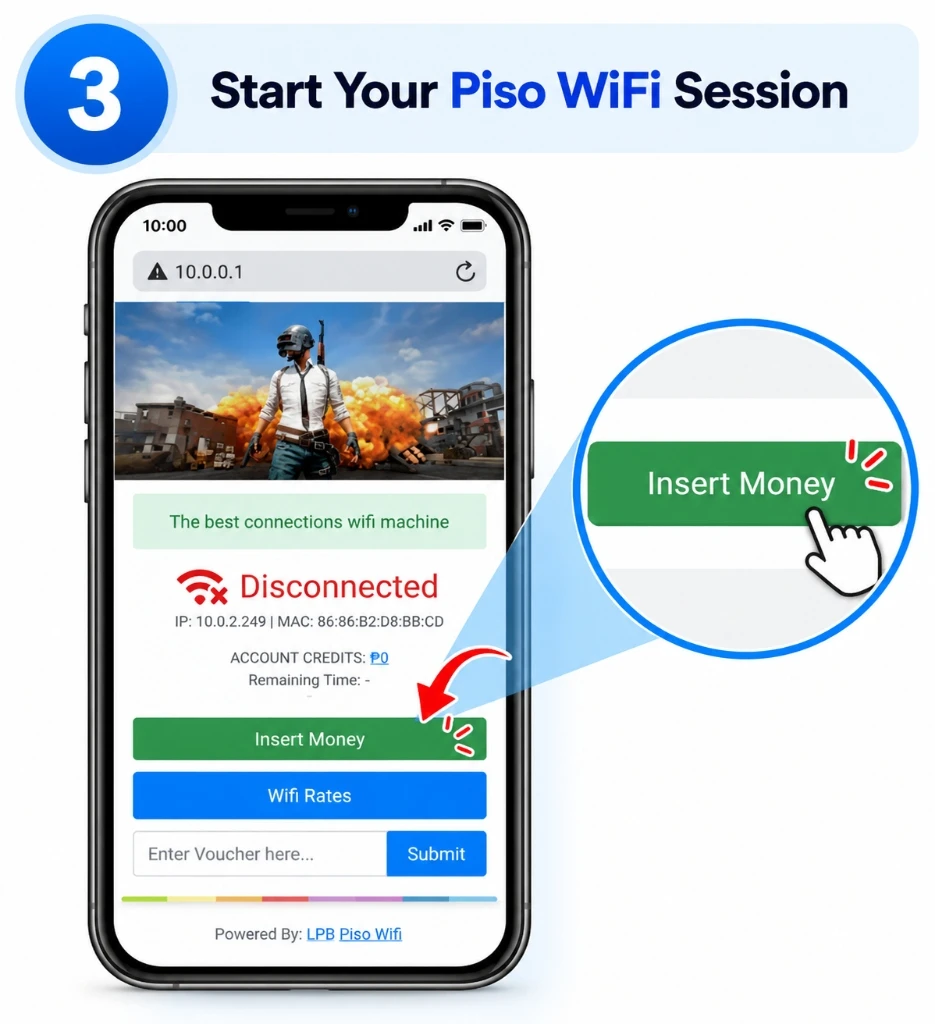
Once the portal displays in Chrome, initiate your paid time before attempting to pause.
1. Payment
Tap Insert Money and drop coins into the machine.
2. Voucher Code
Type voucher PIN and submit to credit time.
3. Verify Active Session
Confirm remaining time countdown begins ticking.
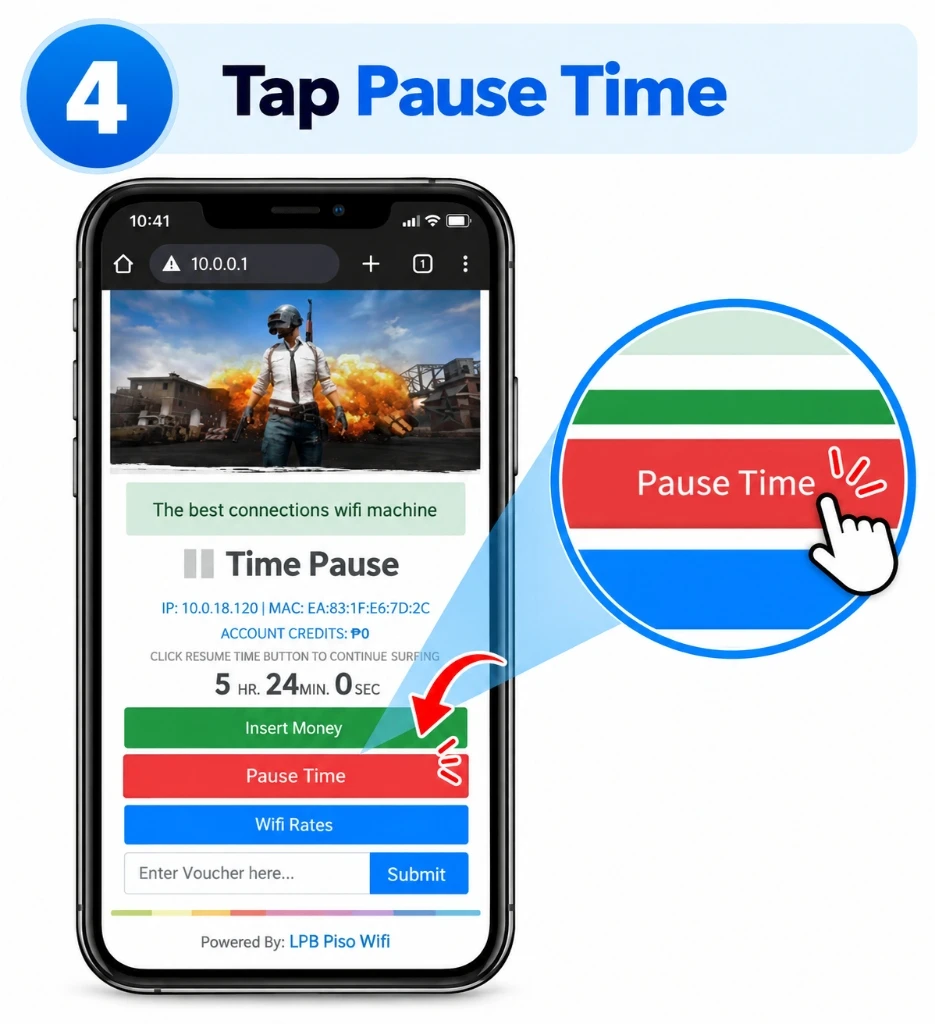
How to Pause Piso WiFi Time in Chrome
Freeze your active session in 6 clear steps to save your paid minutes.
Open Your Active Session
Open Google Chrome and return to http://10.0.0.1.
Check Your Remaining Time
Confirm the timer shows your active countdown (e.g. 01:24:35).
Find Pause Time
Look for the Pause Time button on the dashboard.
Select Pause
Tap the Pause button once and wait for the page to refresh.
Confirm the Paused State
Ensure the timer freezes and status updates to PAUSED.
Leave the Network Safely
Once verified as paused, you can safely turn off Wi-Fi or walk away.
What Happens After You Pause Piso WiFi Time in Chrome?
Session Paused
The active session changes to a paused state as soon as the router accepts the request.
Timer Frozen
Your remaining session time stops depleting according to the machine's pause policy.
Ready to Resume
You can return to Chrome later and use the available Resume or Continue control.
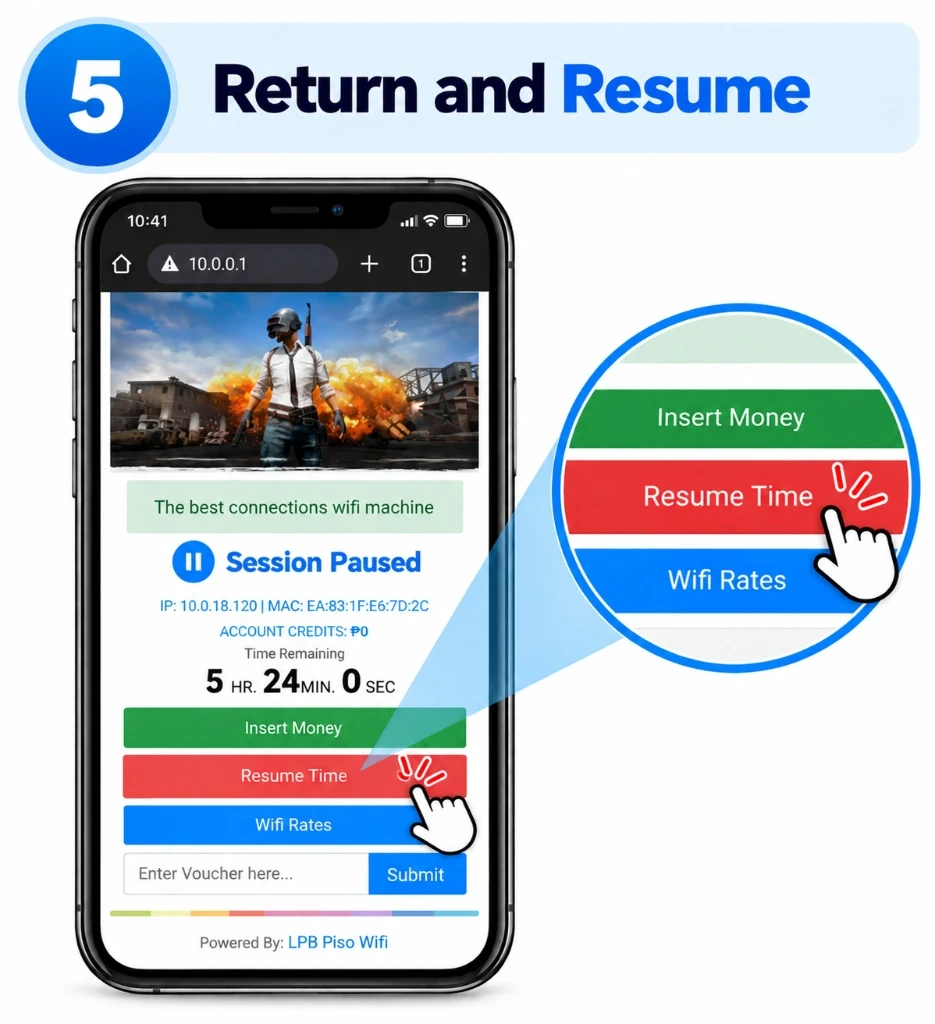
How to Resume Piso WiFi Time in Chrome
When you are ready to continue browsing, reactivate your session on the same device:
- Reconnect: Join the same Piso WiFi network.
- Open Chrome: Launch your Google Chrome browser.
- Open Portal: Go to
http://10.0.0.1. - Find Paused Session: Look for your frozen session indicator.
- Select Resume: Click Resume Time or Continue.
- Confirm Running: Verify your internet connectivity is restored.
Can I Resume Piso WiFi Time in Another Browser?
It may be possible on some systems, but you should not assume that switching browsers (e.g. from Chrome to Safari or Edge) will preserve access to your active session. Some captive portals rely on local session cookies and device MAC records tied to the originating browser app.
See our device-specific Piso WiFi guide →Chrome Piso WiFi Pause Time on Android
Android users can easily access the captive portal in Chrome via these 4 steps:
Connect Wi-Fi
Select Piso WiFi in Android Settings.
Open Chrome
Launch the official Google Chrome app.
Enter 10.0.0.1
Type http://10.0.0.1 in top address bar.
Pause / Resume
Tap Pause Time to halt your session.
Chrome Piso WiFi Pause Time on Samsung
Samsung Galaxy phones commonly feature Chrome alongside Samsung Internet. Here is the recommended workflow:
1. Connect Wi-Fi
Open Settings → Connections → Wi-Fi → select the Piso WiFi network.
2. Launch Chrome
Open Google Chrome rather than the default browser for maximum compatibility.
3. Open 10.0.0.1
Enter http://10.0.0.1 directly into Chrome's address bar.
Chrome Piso WiFi Pause Time on Windows 10 & 11
On a Windows laptop or desktop computer, connect to the Piso WiFi wireless network and open Chrome:
1. Wi-Fi Association
Click the Wi-Fi icon in the bottom right taskbar and connect to Piso WiFi.
2. Open Google Chrome
Launch Chrome and ensure no corporate proxy or VPN client is running.
3. Navigate to 10.0.0.1
Enter http://10.0.0.1 and manage your countdown pause state.
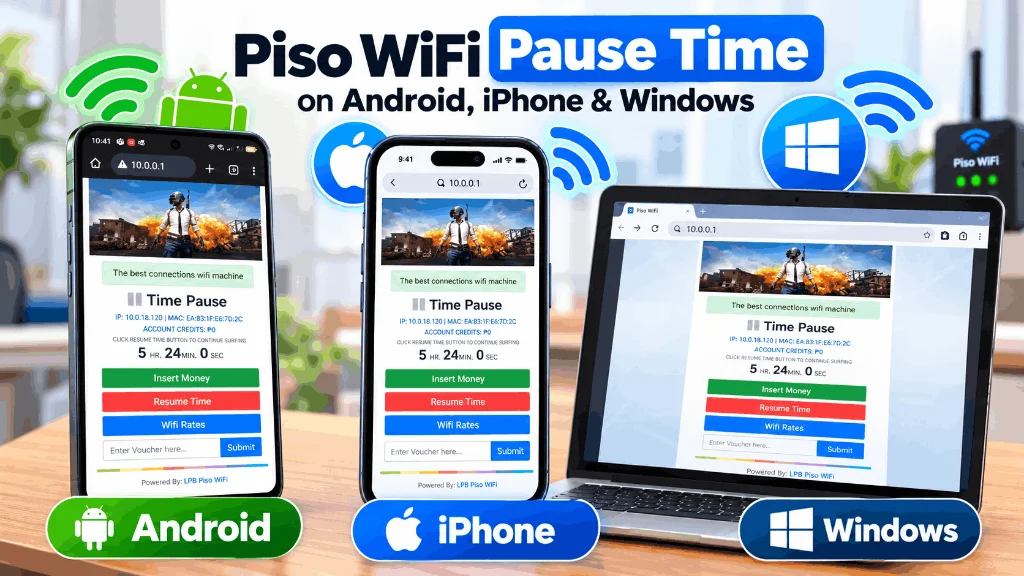
Chrome Piso WiFi Pause Time on iPhone & iPad
iPhone users can use Chrome if installed from the App Store, with Safari available as a fallback.
Google Chrome on iOS
Open the Chrome app → type http://10.0.0.1 → access session timer. Ensure Local Network permissions are granted to Chrome in iOS Settings.
Apple Safari Fallback
If Chrome displays a blank screen due to iOS captive restrictions, Safari serves as the native browser with immediate portal compatibility.
Piso WiFi Pause Time Not Loading in Chrome?
Follow these 7 ordered checks to solve blank screens, timeouts, and redirect loops:
Verify Wi-Fi Connection
Ensure your phone has not quietly disconnected or switched to mobile data.
Enter the Address Manually
Type http://10.0.0.1 directly into Chrome's URL bar, not into Google.
Check 10.0.0.1 vs Other Subnets
Confirm whether the machine uses 10.0.0.1 or an alternative gateway like 192.168.1.1.
Disable Active VPN Apps
VPNs route traffic externally, blocking access to private local 10.0.0.1 portal pages.
Try Chrome Incognito Mode
Open a New Incognito Tab to bypass cached redirects or broken site data.
Test Another Browser
Open Safari, Edge, or Firefox to determine whether the issue is isolated to Chrome.
Check the Network Gateway
Inspect your Wi-Fi connection settings to verify the actual default gateway IP assigned.
Clear Chrome Cache and Cookies for Piso WiFi
Browsers can retain stale portal data. If 10.0.0.1 appears stuck, follow these three options:
Use Incognito Mode
Tap the 3 dots menu → New Incognito Tab → enter http://10.0.0.1. This immediately bypasses all existing cache without deleting history.
Clear Site Data
Tap the tune icon next to 10.0.0.1 in Chrome's address bar → Site settings → Clear data & reset permissions.
Restart Chrome
Force close Chrome from the app switcher, toggle Wi-Fi off and on, and relaunch Chrome.
Should You Use HTTP or HTTPS for Piso WiFi in Chrome?
Local Piso WiFi portals operate on an unencrypted HTTP address:
Do not automatically change the address to https://10.0.0.1! If Chrome warns “Not Secure”, this is normal for local private routers that lack public SSL certificates. Tap Advanced → Proceed if prompted.
Chrome Says 10.0.0.1 Cannot Be Reached
Diagnose common error messages shown by Chrome when attempting to load the portal.
| Chrome Problem | Possible Area to Check | Recommended Action |
|---|---|---|
| 10.0.0.1 won't load | Wi-Fi association | Reconnect to the Piso WiFi SSID |
| ERR_ADDRESS_UNREACHABLE | Gateway IP address | Check actual router gateway in Wi-Fi settings |
| Portal keeps loading / spinner | Browser cache or VPN | Try Incognito Mode or disable active VPN |
| Wrong website appears | DNS search query | Verify you typed IP in URL bar, not search bar |
| Chrome works elsewhere but not here | Captive routing | Check Private DNS settings and turn off |
| Portal loads but controls missing | Machine configuration | Check with machine operator |
Does Piso WiFi Pause Time Only Work in Chrome?
No. Chrome is just one of several browsers capable of accessing web portals.
| Browser | Primary Platform | Portal Compatibility | Pause Time Support |
|---|---|---|---|
| Google Chrome | Android, Windows, macOS, iOS | Direct portal access via 10.0.0.1 | Depends on machine firmware |
| Apple Safari | iPhone, iPad, Mac | Direct portal access via 10.0.0.1 | Depends on machine firmware |
| Microsoft Edge | Windows 10 / 11 | Direct portal access via 10.0.0.1 | Depends on machine firmware |
Why Is the Piso WiFi Pause Button Missing in Chrome?
Feature Disabled
The machine owner disabled the pause capability in the admin portal.
Session Not Active
Pause controls only appear once coins or a voucher activate positive time.
Different Portal Design
The button may be located in a menu tab or require scrolling down.
Browser Cache Issue
Stale CSS may hide the button. Try refreshing in Incognito Mode.
Session Restriction
The machine may enforce a minimum active time before allowing a pause.
Firmware Limitation
Ask the operator if their specific vendo supports pause functionality.
Chrome Piso WiFi Problems & Quick Fixes
| Chrome Problem | First Thing to Try |
|---|---|
| Chrome won't open portal | Reconnect to the Piso WiFi SSID and disable mobile data |
| 10.0.0.1 doesn't load | Type http://10.0.0.1 directly into the address bar |
| Google Search opens instead | Type the IP manually without clicking search suggestions |
| Portal keeps loading forever | Open a New Incognito Tab in Chrome |
| Portal looks outdated or broken | Clear relevant cached site data in Chrome settings |
| Chrome can't connect to IP | Check your phone's actual default gateway in Wi-Fi settings |
| Pause button missing | Confirm your session is running; ask machine operator |
| Session not visible | Return to the original device that purchased the time |
| Chrome still fails | Test an alternative browser (Safari, Edge, Firefox) |
Common Chrome Piso WiFi Mistakes
Don't Google the IP
Always type 10.0.0.1 in the topmost address bar, not into the search engine box.
Don't Assume 10.0.0.1 Everywhere
Some vendos use 192.168.1.1 or other subnets. Check the connected gateway.
Don't Assume Chrome Creates Pause
Chrome only displays the page; pause availability depends entirely on the router.
Don't Download Random APKs
A standard browser portal never requires downloading shady third-party pause apps.
Did You Enter 10.0.0.0.1 Instead of 10.0.0.1 in Chrome?
A common typing error is entering an extra zero, resulting in 10.0.0.0.1. This address does not exist on IPv4 networks and will cause Chrome to display an ERR_NAME_NOT_RESOLVED error.
Does Chrome Work With LPB, AdoPiSoft and Other Piso WiFi Systems?
Yes. Chrome works seamlessly with all major Philippine vendo firmware platforms:
Chrome Piso WiFi Pause Time on Mobile Devices
Android
Wi-Fi → Chrome → 10.0.0.1 → Pause Time
Samsung
Wi-Fi → Chrome → Portal → Pause Time
iPhone
Wi-Fi → Chrome → Portal → Pause Time
Complete Chrome Piso WiFi Pause Time Workflow
Chrome Piso WiFi Pause Time FAQs
Answers to the 18 most common questions about using Chrome with Piso WiFi.
How do I use Chrome for Piso WiFi Pause Time?
Connect your device to the Piso WiFi network, open Google Chrome, enter the local portal address (such as http://10.0.0.1) directly into the address bar, start your session, and select Pause Time when available.
What is the Chrome Piso WiFi Pause Time address?
If the machine uses 10.0.0.1 as its default gateway, type http://10.0.0.1 directly into the top address bar in Chrome.
How do I open 10.0.0.1 in Chrome?
Open Google Chrome and type http://10.0.0.1 in the address bar at the very top. Press Enter or Go. Do not enter it into the Google search box.
Why is 10.0.0.1 not opening in Chrome?
Make sure your device is connected to the Piso WiFi signal. Turn off any active VPN or cellular mobile data, try Incognito Mode, and verify the network's actual router gateway in Wi-Fi settings.
Can I use Chrome on Android for Piso WiFi?
Yes. Connect to the Piso WiFi network, open Chrome, and type http://10.0.0.1. If the captive portal hangs, temporarily disable Private DNS in Android settings.
Can I use Chrome on Samsung?
Yes. Samsung devices can use Google Chrome to access the Piso WiFi captive portal at 10.0.0.1 just like any other Android phone.
Can I use Chrome on Windows 10?
Yes. Connect your Windows 10 or 11 laptop to the Piso WiFi network, open Chrome, and navigate to http://10.0.0.1 to manage your session and pause time.
Can I use Chrome on iPhone?
Yes, if Google Chrome is installed from the App Store. If Chrome has difficulty loading the captive portal, Apple Safari can also be used as a reliable alternative.
Why is the Pause button missing in Chrome?
Chrome is merely the browser displaying the page. The Pause Time feature must be enabled in the machine firmware by the vendo owner. If it is turned off or restricted, Chrome cannot create it.
Does Chrome create the Pause Time feature?
No. Chrome is simply the web browser that renders the portal interface. All session timers, billing rules, and pause controls are handled by the local Piso WiFi router.
Can I use another browser instead of Chrome?
Yes. Any modern standards-compliant browser (like Safari, Microsoft Edge, or Firefox) will work with the web-based captive portal.
Should I use HTTP or HTTPS for Piso WiFi in Chrome?
Always use http://10.0.0.1. Local routers run simple HTTP web servers. Forcing https:// will trigger security warnings or connection timeouts.
Does clearing Chrome cache fix Piso WiFi loading issues?
Yes, clearing cached site data or testing in an Incognito tab can resolve situations where Chrome attempts to load stale portal stylesheets or redirect scripts.
Does disconnecting WiFi pause my Piso WiFi time in Chrome?
No! Simply closing Chrome or disconnecting Wi-Fi will NOT freeze your timer. You must explicitly tap the Pause Time button on the portal.
Can I resume the session in Chrome later?
Yes. Reconnect to the same hotspot on the same device, open Chrome, navigate back to http://10.0.0.1, and tap Resume Time.
Can I resume on another phone or browser?
Usually no. Most Piso WiFi platforms tie sessions to your device's hardware MAC address. Always resume on the exact device and browser used to start the session.
What if Chrome opens Google search instead of the portal?
Ensure you are typing http://10.0.0.1 in the topmost URL/address bar, not in the Google search input field on the new tab page.
What if 10.0.0.0.1 does not work in Chrome?
10.0.0.0.1 is an invalid typo with an extra zero. Correct the address to http://10.0.0.1 and verify your network's default gateway.
Having Trouble With Chrome Piso WiFi Pause Time?
Start with the basic workflow: connect to the Piso WiFi network, open Chrome, enter the local portal address, and access your active session. If the portal or Pause Time control does not work, use our guides to identify the cause.
This guide explains how Google Chrome can be used to access a web-based Piso WiFi portal, including the common 10.0.0.1 workflow, Pause Time, Resume Time, and browser troubleshooting. Piso WiFi interfaces can differ between machines, software versions, and operator configurations.