Piso WiFi Pause Time Not Working? Complete Troubleshooting Guide
Having trouble with Piso WiFi Pause Time? Whether the Pause button is missing, the timer keeps running, 10.0.0.1 will not open, you cannot log in, or your session will not resume, this guide walks through the most common problems and what to check.
Start with the quick diagnosis below, then jump directly to the specific solution for your issue.
What Problem Are You Having?
Select your specific symptom below to jump straight to the verified technical fix:
Try These 7 Checks First
Before modifying advanced network profiles or device settings, always check these fundamentals:
Confirm Wi-Fi Connection
Ensure your device is connected to the Piso WiFi network and cellular data is off.
Refresh the Portal
Reload your current browser tab by pulling down or pressing F5 to fetch live state.
Check Portal Address
Enter http://10.0.0.1 directly into the URL bar, never in a Google search box.
Confirm Active Session
Verify that your paid session has actually started and credits are registered.
Try Another Browser
Test Safari, Edge, or Firefox to check if the glitch is isolated to Chrome.
Use Incognito Mode
Open a Private Tab to bypass stale local cache, cookies, or redirect loops.
Check Actual Gateway
If 10.0.0.1 fails, verify your phone's network gateway IP (e.g. 192.168.1.1).
Why Doesn't Every Piso WiFi Have the Same Pause Controls?
Piso WiFi machines can use different hardware configurations and software platforms (such as LPB, AdoPiSoft, PisoFi, or JuanFi). The availability and behavior of Pause Time can therefore differ between installations.
Important Rule to Remember:
A missing Pause button does not automatically mean that Chrome, your phone, or 10.0.0.1 is broken. First determine whether Pause Time is actually enabled by the vendo owner on that particular machine.Piso WiFi Pause Button Not Showing
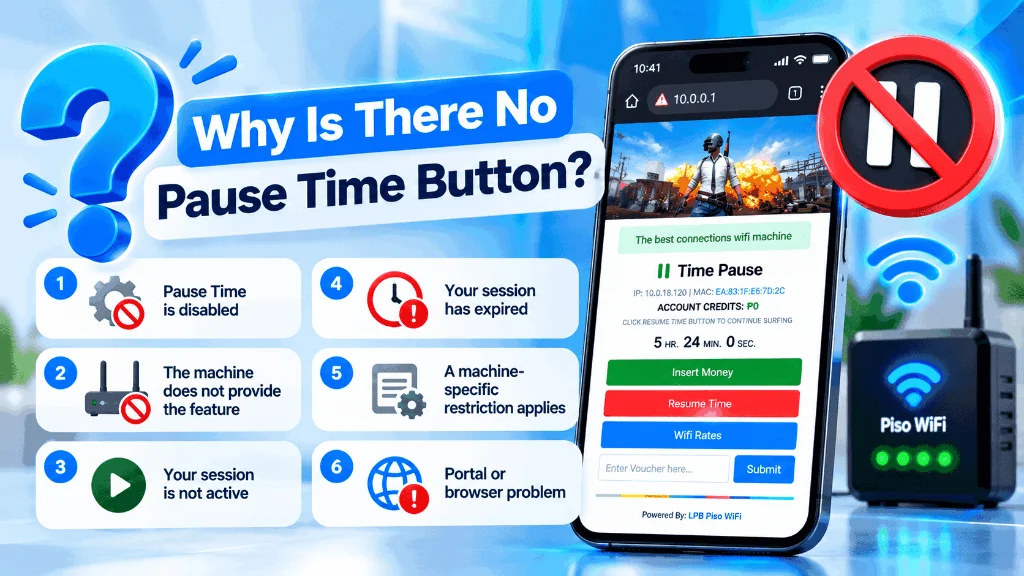
One of the most common user frustrations is that the Pause Time button does not appear after opening the portal. Check these 6 possibilities:
- Pause Time is not enabled: The machine operator may have toggled off pausing in their administrator settings.
- Session is not active: Most portals only reveal pause controls after coins are accepted and a paid session begins.
- Different button label: Look for “Pause”, “Freeze”, or an icon (⏸) in a header dropdown.
- Portal did not load completely: Heavy network traffic can stall script assets; refresh the page.
- Wrong portal accessed: Confirm you are on the customer session dashboard rather than an admin login.
- Machine configuration: Certain budget vendo units simply do not support session pausing.
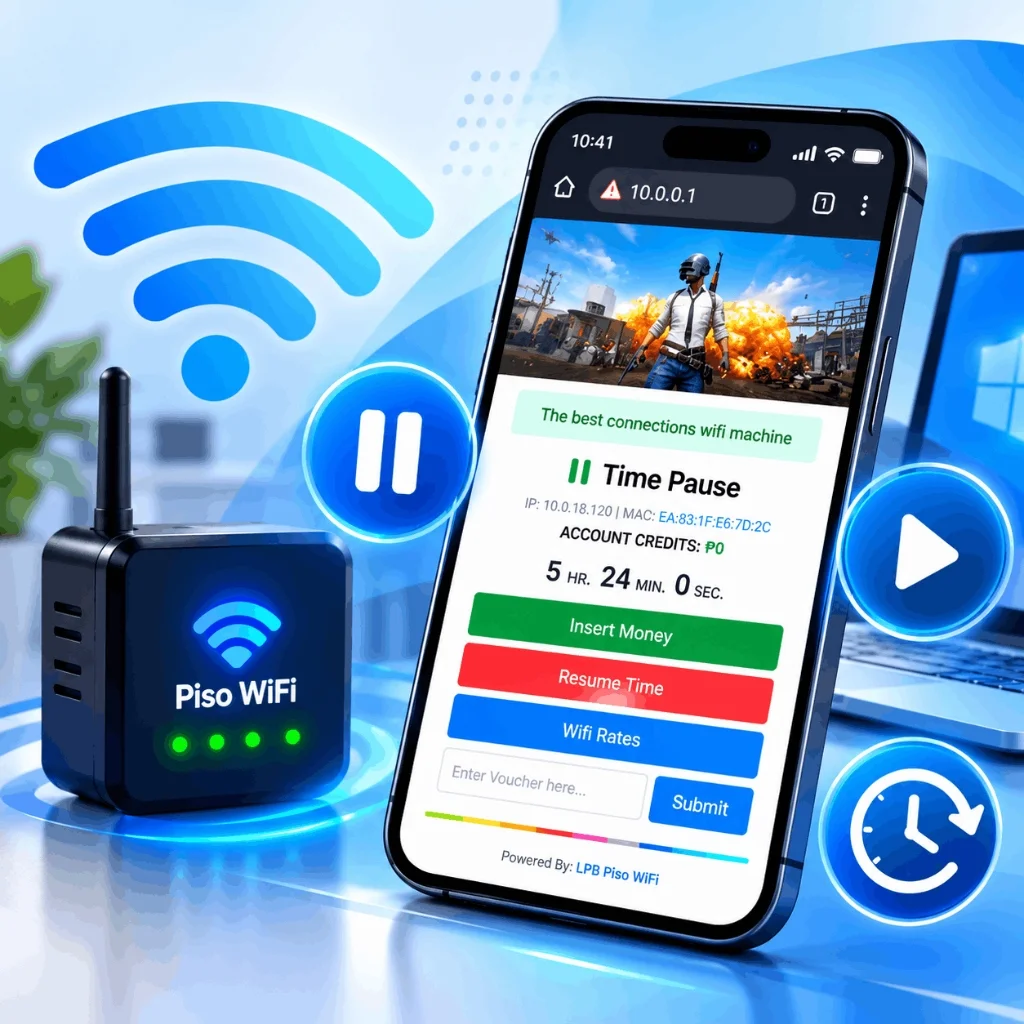
Piso WiFi Pause Button Is Not Working
If the Pause button appears on screen but selecting or tapping it does not change your session status, follow these steps:
Wait for the Portal Response
Give the portal 5 to 10 seconds to process the pause command on the router before tapping repeatedly.
Refresh the Session
Reload the tab to see if the session status has updated to PAUSED on the server side.
Check Your Connection
An unstable or weak Wi-Fi signal can drop HTTP POST requests sent by the button.
Try Private / Incognito Mode
Ad blockers or privacy extensions can block inline JavaScript buttons from firing.
Try Another Browser
If Chrome script engines misbehave, test Safari, Firefox, or Samsung Internet.
Check Remaining Balance
If your session clock hit zero while you were reading, the pause request will be rejected.
10.0.0.1 Piso WiFi Not Opening
If 10.0.0.1 will not load in your browser, the cause is usually your network gateway, an active VPN, or typing mistakes.
- Check 1 — Wi-Fi: Confirm you are connected to the Piso WiFi SSID, not your home Wi-Fi or LTE.
- Check 2 — Address: Type
http://10.0.0.1directly into the address bar. - Check 3 — Don't Google: Avoid searching 10.0.0.1 on Google Search.
- Check 4 — Disable VPN: Turn off active VPNs, iCloud Private Relay, and custom DNS.
- Check 5 — Gateway: Check device connection details to verify the true gateway address.
Did You Enter the Wrong IP Address?
Users frequently make typing mistakes when entering the local gateway. Here is the breakdown:
| Entered Search | Syntax Status | Browser Outcome |
|---|---|---|
10.0.0.1 | ✓ Valid IPv4 | Directly opens the local portal |
10.0.0.0.1 | ❌ Extra Octet | Triggers Google search error |
10 0 0 1 | ❌ Spaces | Searches search engine |
10.0 0.1 | ❌ Missing Dot | Fails to parse address |
1.0.0.0.1 | ❌ Invalid IP | Completely wrong destination |
Piso WiFi Pause Time Login Not Working
If the Piso WiFi login or session page fails, determine whether the problem is with network reachability or invalid session credentials:
Is the portal opening?
If http://10.0.0.1 does not open at all, solve gateway reachability before attempting login.
Are you on the customer portal?
Customer access shows credit balance; do not try logging into 10.0.0.1/admin.
Is your session active?
Session pause controls are only accessible after an active customer session begins.
Piso WiFi Password & Voucher Not Working
If a voucher PIN or session code is rejected, follow these verified rules:
❌ What NOT to do:
- Never guess administrator passwords.
- Do not use voucher PINs bought from a different vendo machine.
- Do not repeatedly hammer invalid codes (may lock your MAC).
✓ What to do:
- Recheck voucher numbers printed on your ticket.
- Verify you are connected to the exact machine where coins were inserted.
- Contact the local machine operator for voucher validation.
Piso WiFi Portal Not Loading: Symptoms & Solutions
Quickly diagnose what is preventing the captive portal dashboard from loading:
| Symptom Experienced | Probable Underlying Cause | Recommended First Action |
|---|---|---|
| Blank white page | Corrupted cache or stale script | Refresh page or test in Incognito mode |
| Page loading forever | Weak Wi-Fi signal or router freeze | Move closer to machine & reconnect Wi-Fi |
| Google Search opens | IP was entered into search box | Type http://10.0.0.1 directly in URL bar |
| Wrong website loads | Active VPN or custom Private DNS | Disable VPN and set Private DNS to Off |
| ERR_CONNECTION_REFUSED | Non-standard gateway IP | Check true gateway IP in device Wi-Fi settings |
| Login button missing | Portal theme failure | Clear browser cache and reload portal |
| Stale balance displayed | Aggressive browser caching | Force refresh (Ctrl+F5) or use Private Window |
Piso WiFi Pause Time Not Working in Chrome
If the portal works poorly or fails to load in Google Chrome, determine whether the problem is specific to Chrome or affects all browsers:
- Refresh: Tap reload to clear stalled captive redirects.
- Incognito Mode: Open a New Incognito Tab to bypass cached DNS records.
- Clear relevant site data: Clear cookies specifically for 10.0.0.1 in Chrome Settings.
- Test another browser: Open Edge, Safari, or Firefox for a direct comparison.
- Check Wi-Fi: Confirm Chrome has permission to access local network devices.
Clear Chrome Cache or Try Incognito Mode
Follow this recommended diagnostic sequence to avoid clearing all browser passwords unnecessarily:
Browser cache conflict → Clear 10.0.0.1 cookies.
Network / gateway issue → Check router connection.
Piso WiFi Pause Time App Not Working
If you are trying to access Piso WiFi Pause Time through an application and it fails, verify whether an app is actually required.
1. Web-Based Standard
Over 95% of Piso WiFi systems rely purely on web browsers. They do not maintain an official Android or iOS app.
2. Third-Party APK Risk
Unverified APKs downloaded from third-party sites often contain adware or malware and cannot bypass machine limits.
3. Browser Alternative
Opening Chrome or Safari and visiting http://10.0.0.1 directly is faster, safer, and 100% reliable.
Piso WiFi Time Not Stopping After Pause
When users notice their timer continues running after pressing Pause, it is crucial to inspect the server session status, not just the local JavaScript clock.
- Press Pause Time once: Allow the server 5 seconds to register the request.
- Check session status text: Look for the badge changing from ACTIVE to PAUSED.
- Refresh the portal tab: Verify if the remaining minutes freeze upon reloading.
- Verify if time genuinely deducts: Some browser timers count down visually until refreshed.
- Contact operator if time burns: If status remains ACTIVE and deducts credits, the operator's firmware pause hook is misconfigured.
Piso WiFi Cannot Resume Time
If your session was paused earlier but you cannot get your internet back, verify that the portal recognizes your device:
Reconnect to the same Wi-Fi SSID
Make sure you have joined the exact machine where your time was originally paused.
Open the portal at 10.0.0.1
Load the gateway address in the same browser app used to initiate the pause.
Look for Resume / Continue
Tap the green “Resume” or “Continue” button to reactivate internet access.
My Paused Piso WiFi Session Is Gone
If you return and your active balance is nowhere to be found, check these 6 factors:
- Randomized MAC changed: Your phone generated a new virtual MAC address on reconnecting.
- Pause timeout expired: Most operators configure a pause expiration (e.g. 12 or 24 hours max).
- Connected to wrong vendo: Two neighboring Piso WiFi machines may share identical SSIDs.
- Browser Incognito closed: Closing private tabs deletes the session authentication cookie.
- Operator flushed sessions: The vendo operator may have rebooted or wiped client leases.
Session Timeouts, Disappearing Options & Zero Balance
Detailed guidance for when session balances and controls change unexpectedly:
Pause Time Expired
Piso WiFi systems do not hold paused minutes indefinitely. Operators configure pause expiration policies (typically 8 to 24 hours). Once reached, unused credits are cleared.
Main Pause Guide →Pause Option Disappears
If Pause Time was visible earlier but vanished, check whether your session entered promo grace time, or whether your remaining balance dropped below the minimum pause threshold.
Check Pause Rules →Remaining Time Shows 0
When remaining balance hits 00:00:00, session controls disappear. Do not refresh repeatedly expecting time to return. Insert coins to begin a fresh paid session.
How to Buy Time →Paid But No Session Started
Inserted a coin but timer remains inactive? Wait 30 seconds, reload the page once, and confirm your coin wasn't rejected in the reject tray. If no session appears, notify the operator immediately.
Do NOT insert more coins repeatedly.Wrong Session Displayed
If you see another customer's timer, your phone picked up an IP lease previously assigned to another device. Disconnect from Wi-Fi for 1 minute and reconnect to obtain an updated IP lease.
Turn off Private Wi-Fi address.Device Disconnected Mid-Session
Walking out of range or turning off phone Wi-Fi DOES NOT pause your time. The router continues counting down on the server. Always pause on the portal before disconnecting.
Pause vs Disconnect Guide →Troubleshooting by Device & System
Platform-specific network quirks that prevent Pause Time from functioning:
Android Issues
Turn off Private DNS in Android Settings. Switch MAC from Randomized to Phone MAC so your paused session isn't lost.
Android Guide →iPhone & iPad Issues
If Apple CNA popup freezes, tap Cancel → “Use Without Internet”. Then open Safari and type 10.0.0.1 directly.
iPhone Guide →Windows PC Issues
Verify Ethernet is disconnected and Wi-Fi adapter is active. Run ipconfig in CMD to confirm default gateway.
LPB Specific Problems
LPB portals feature unique theme styling and pause timeouts. Learn how to navigate LPB session screens and gateway settings.
Complete LPB Guide →Chrome Portal Issues
Chrome may force HTTPS or cache dead redirects. Use Incognito or visit Chrome flags to reset captive portal checks.
Chrome Troubleshooting →App Failure Issues
Avoid third-party APKs. Use your phone's standard mobile web browser to access the official captive portal.
App Guide →Are You Using the Customer or Admin Page?
Many users confuse administrative portals with customer sessions. Here is how they differ:
| Feature | Customer Portal | Admin Interface |
|---|---|---|
| For Whom | General Wi-Fi customers | Authorized operators |
| Primary URL | http://10.0.0.1 | 10.0.0.1/admin |
| Controls | Pause / Resume Time | Hardware & Rates config |
| Credentials | Coin / Voucher token | Operator Password |
Piso WiFi Portal HTTP vs HTTPS Problem
Piso WiFi captive portals are hosted locally on private micro-routers that do not have public SSL certificates. Always access:
Do NOT change it to https://10.0.0.1! Browsers will display “SSL Connection Error” or block the page. If Chrome says “Not Secure”, this is normal for local routers. Tap Advanced → Proceed.
Does the Problem Happen in Every Browser?
Testing another browser helps narrow down whether the glitch is in Chrome or on the Piso WiFi router itself:
| Test Conducted | Observed Result | What It Strongly Suggests |
|---|---|---|
| Chrome fails, Safari/Edge works | Secondary browser connects fine | Chrome-specific cache, cookies, or DNS profile issue |
| Both Chrome and Safari fail | All browsers show timeout | Network or hardware router issue (gateway disconnected) |
| Incognito works, normal tab fails | Private tab opens cleanly | Stale session cookies or extension interference |
| All nearby devices fail to load | No customer can open portal | Piso WiFi machine is offline or internet backhaul is down |
| Only your device fails | Others are happily browsing | Your device has VPN, Private DNS, or bad MAC assigned |
Only Your Device Fails
Turn off VPN, disable Private DNS, forget Wi-Fi network and reconnect. Switch MAC Address from Randomized to Device MAC.
Multiple Devices Fail
If several customers cannot open 10.0.0.1, the machine's router module may have frozen or lost power. Alert the operator.
Portal Opens But Pause Fails
Network connection is working, but the machine software has disabled Pause Time or reached system capacity limits.
Piso WiFi Pause Time Problems & Quick Fixes
Comprehensive diagnostic matrix covering 20 common problems across all systems:
| Specific Problem | First Check to Perform | Recommended Next Step |
|---|---|---|
| Pause button missing | Feature / configuration | Verify if Pause Time is supported on this machine |
| Pause button not working | Network / connection | Wait 5s, refresh portal, and tap once again |
| Pause time not showing | Active session status | Confirm active session balance is registered |
| Timer continues running | Server session badge | Check if status badge says PAUSED vs ACTIVE |
| Cannot resume time | Session visibility | Reconnect to exact machine and open 10.0.0.1 |
| 10.0.0.1 won't open | Wi-Fi / Gateway IP | Disable VPN and verify actual default gateway |
| Wrong IP entered | Address syntax | Type http://10.0.0.1 without typos or extra dots |
| Login not working | Portal vs admin path | Ensure you are on client dashboard, not admin page |
| Password rejected | Voucher credentials | Verify PIN printed on ticket; contact operator |
| Portal not loading | Network / browser | Try Incognito mode or another mobile browser |
| Chrome problem | Browser cache | Open New Incognito Tab or clear 10.0.0.1 cookies |
| App not working | Access method | Use standard browser at 10.0.0.1 instead of APK |
| Android problem | Private DNS / MAC | Turn off Private DNS and switch to Phone MAC |
| iPhone problem | Apple CNA popup | Select “Use Without Internet” & open Safari |
| Windows problem | Adapter priority | Disconnect Ethernet cable and run ipconfig |
| LPB problem | LPB portal theme | Open dedicated LPB Piso WiFi Guide |
| Session disappeared | MAC address type | Disable randomized MAC in your Wi-Fi settings |
| Paid but no session | Coin slot registration | Check reject tray; contact physical operator |
| Wi-Fi disconnected | Signal range | Reconnect immediately; pause is NOT automatic |
| HTTP / HTTPS error | Protocol formatting | Use http://10.0.0.1; do NOT force HTTPS |
Piso WiFi Pause Time Troubleshooting Decision Tree
Follow this visual decision flow to pinpoint where your connection or pause request is stalling:
When Should You Contact the Piso WiFi Operator?
Some problems cannot be resolved from your phone because they originate inside the hardware unit or operator configuration. Contact the operator when:
- Pause Time is advertised on the vendo but missing from the portal.
- The Pause button does not respond after trying Incognito and another browser.
- Time continues burning after the screen confirms a pause.
- You dropped coins or paid, but no session credits registered.
- Your remaining session disappeared unexpectedly.
- The printed voucher PIN is rejected as invalid.
- The 10.0.0.1 portal is unreachable for all customers.
- The vendo physical machine appears frozen or unpowered.
Common Troubleshooting Mistakes
❌ Don't Guess IP Addresses
Check your device's actual gateway instead of typing random IPs.
❌ Don't Use Random Admin Passwords
Customer access and operator admin access are completely separate.
❌ Don't Download Unknown APKs
Stick with official browser portals rather than shady third-party apps.
❌ Don't Assume Disconnect Pauses Time
Always tap Pause Time on the portal before turning off Wi-Fi.
❌ Don't Insert More Coins Repeatedly
If a session doesn't register, inserting more coins may also be lost.
Complete 1-Minute Fix Flow
Try this sequence before doing anything advanced or calling the operator:
More Piso WiFi Guides
Explore our dedicated platform guides and technical manuals:
Piso WiFi Pause Time
Complete foundational guide on pausing and resuming your timer on all vendos.
Read Complete Guide →10.0.0.1 Piso WiFi Guide
Portal access, local IP configuration, admin vs customer login, and gateway checks.
10.0.0.1 Guide →Chrome Piso WiFi Guide
Solve Chrome captive redirects, cache loops, and mobile browser timeouts.
Chrome Guide →LPB Piso WiFi Guide
Dedicated portal guide for LPB vendos: session status, pause controls, and 10.0.0.1.
LPB Guide →Piso WiFi Pause Time App
Understanding legitimate helper utilities vs fake pause APKs on Android & iOS.
App Guide →Device Walkthroughs
Step-by-step connection instructions for Android, Samsung, iPhone, and Windows.
Device Guide →Piso WiFi Pause Time Troubleshooting FAQs
Detailed answers to the 25 most frequent questions about missing buttons, gateway errors, and timer bugs:
Why is my Piso WiFi Pause button missing?+
Pause Time may not be available or enabled on the particular machine by the operator, your session may not be active yet, or the portal may use a custom theme where the button is hidden in a menu.
Why is the Piso WiFi Pause button not working?+
Check your connection and active session, refresh the portal, and test another browser or private/incognito mode. If the button remains unresponsive, the problem is usually related to the machine or portal configuration.
Why is my Piso WiFi time not stopping after I press Pause?+
Confirm that the portal actually changed the session status to paused. If the status remains active, the pause request was not accepted by the router firmware, or your browser is displaying a stale cached page.
Why does Piso WiFi time continue after Pause?+
Check the session status indicator rather than relying only on the displayed countdown timer. Refresh the portal to see if the server recognizes the session as paused.
Why can’t I resume my Piso WiFi time?+
Reconnect to the relevant network, reopen the portal, and check whether your paused session is still available. If the session has expired or the pause hold duration has timed out, the Resume control may no longer appear.
Why is 10.0.0.1 not opening?+
Check your Wi-Fi connection and verify that 10.0.0.1 is actually the gateway used by that network. Make sure your VPN, Private DNS, and mobile data are temporarily disabled.
What if I entered 10.0.0.0.1?+
10.0.0.0.1 is an invalid IP address format with an extra digit. The correct address is 10.0.0.1. Typing 10.0.0.0.1 causes browsers to search Google instead of connecting locally.
Why does Google open instead of the Piso WiFi portal?+
Enter the local portal address (http://10.0.0.1) directly into the browser URL address bar at the very top of your screen, instead of typing it into the Google search bar.
Why is the Piso WiFi login page not opening?+
Check your Wi-Fi connection, portal address, browser cache, and network gateway. Testing in Incognito mode or another browser helps isolate whether it is a device or network issue.
Why is my Piso WiFi password not working?+
Verify the credentials supplied for that specific service (e.g., voucher PIN or coin slot token). Do not use random administrator credentials found on unrelated websites.
Why is the Piso WiFi portal not loading?+
Check your Wi-Fi signal, verify the local gateway IP, test in Incognito mode, temporarily disable VPNs, and try another browser application.
Why is Piso WiFi not working in Chrome?+
Try refreshing the page, opening a Chrome Incognito window, and clearing local site cookies. If Chrome fails while other browsers work, Chrome cache or flags may be conflicting with captive redirects.
Can I clear Chrome cache to fix Piso WiFi?+
Yes, but test Incognito Mode first. If the portal works in Incognito, clearing cached cookies and site data for 10.0.0.1 in Chrome settings will resolve the conflict.
Why is my Piso WiFi app not working?+
Check your network connection and verify if the vendo actually supports an app. Most Piso WiFi vendos use browser-based captive portals, so accessing http://10.0.0.1 in Chrome is the safest approach.
Can I use Chrome instead of the Piso WiFi app?+
Yes! Google Chrome is universally compatible with Piso WiFi portals and does not require installing third-party APK files on your phone.
Why is Piso WiFi not working on Android?+
Check your Wi-Fi connection, turn off Private DNS (Settings > Network > Private DNS > Off), disable Randomized MAC, and open http://10.0.0.1 directly in Chrome.
Why is Piso WiFi not working on iPhone?+
Confirm your Wi-Fi connection, disable "Private Wi-Fi Address" in network settings, and if the CNA popup fails, choose "Use Without Internet" and open http://10.0.0.1 in Safari or Chrome.
Why is Piso WiFi not working on Windows?+
Connect to the Wi-Fi SSID, open Edge or Chrome, type http://10.0.0.1, and verify in Command Prompt (`ipconfig`) that your default gateway is indeed 10.0.0.1.
Why is my LPB Pause Time not working?+
Check the LPB portal, active session timer, and Pause button. If the operator disabled the Pause feature in LPB admin settings, the button will not respond or appear.
Is 10.0.0.1 always the Piso WiFi IP?+
No. 10.0.0.1 is the most popular default, but some operators configure machines on 192.168.1.1, 10.1.0.1, or custom subnets.
Does disconnecting WiFi pause my Piso WiFi time?+
No. Disconnecting from Wi-Fi or turning off your phone does not freeze your server-side session clock. Always tap the Pause Time button on the portal first.
Does closing Chrome pause Piso WiFi time?+
No. Closing your browser tab does not send a pause command to the router hardware. You must tap the on-screen Pause button.
Why did my paused session disappear?+
Verify you reconnected to the exact same Wi-Fi machine, check that your device did not randomize its MAC address, and confirm that your pause hold limit has not expired.
What should I do if I paid but my session did not start?+
Wait 30 seconds, refresh the portal once, verify your Wi-Fi connection, and check if a voucher code was printed. If no credits register, contact the physical machine operator.
Can I fix a Piso WiFi machine through 10.0.0.1?+
No. Customer portal access and administrative configuration are completely separate. Only the authorized machine owner can alter hardware settings.
Still Having Problems With Piso WiFi Pause Time?
Start by identifying where the problem occurs: Wi-Fi connection, portal, login, Pause button, timer, or Resume. Most basic issues can be narrowed down by checking the network, portal address, session status, and browser. If the problem depends on machine settings, contact the Piso WiFi operator rather than attempting unauthorized administrator changes.
About This Troubleshooting Guide
This troubleshooting guide covers common customer-side problems related to Piso WiFi Pause Time, including portal access, Pause controls, session status, 10.0.0.1 gateway reachability, browsers, apps, and Resume problems. Piso WiFi installations use different configurations and interfaces. Where behavior depends on the particular machine, this guide identifies the area to check rather than assuming one universal setup.