
10.0.0.1 Piso WiFi Pause Time: Login, Pause & Resume
10.0.0.1 is commonly used as the local portal or gateway address for accessing a Piso WiFi session. From the portal, you may be able to start your session, check your remaining time, pause an active session, and resume it later when Pause Time is available on that machine.
To use it, first connect to the Piso WiFi network, then enter http://10.0.0.1 directly in your browser. Do not search the address on Google.
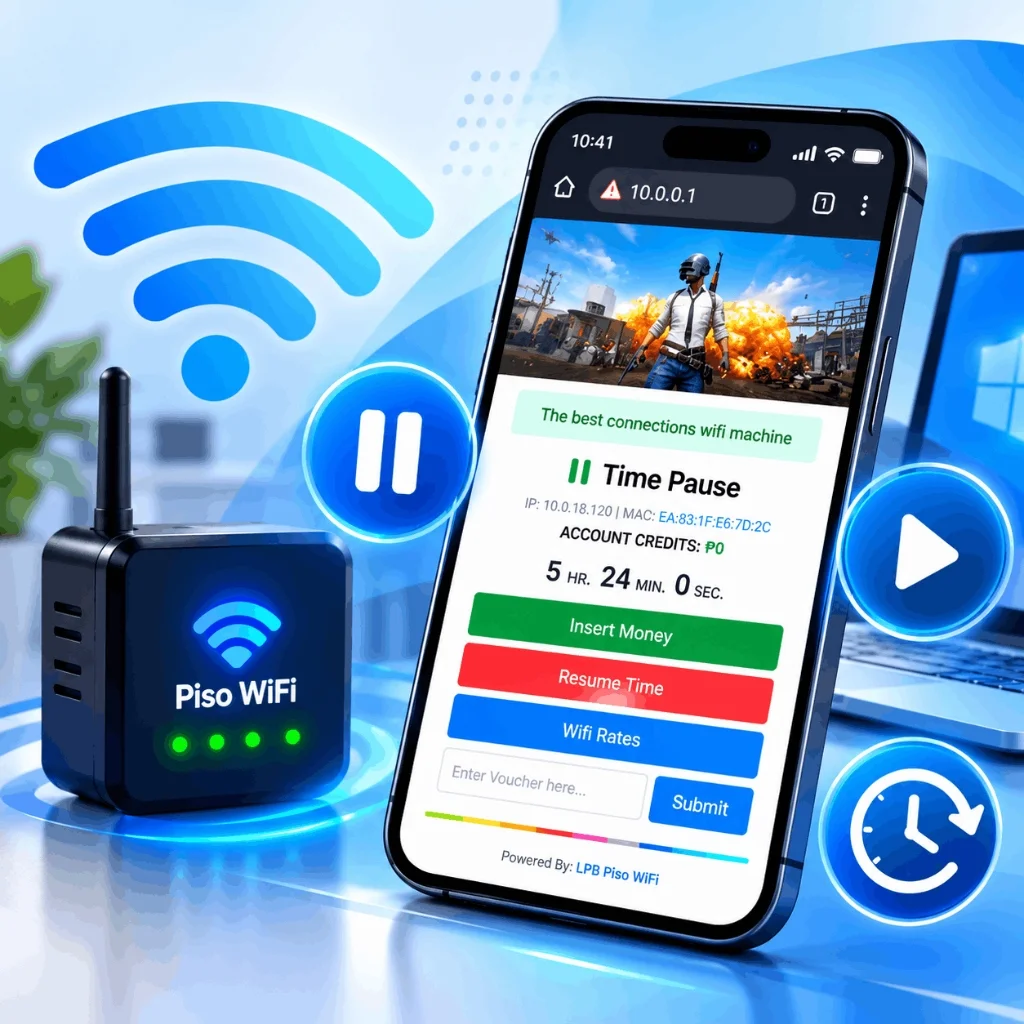
How to Use 10.0.0.1 for Piso WiFi Pause Time
- 1Connect your phone, tablet, or laptop to the local Piso WiFi network.
- 2Open Chrome, Safari, Edge, or another modern browser on your device.
- 3Type http://10.0.0.1 directly into the top address bar (not Google search).
- 4Start your Piso WiFi session by following the portal's coin or voucher instructions.
- 5When you need to stop temporarily, tap the Pause Time button if available.
- 6Return to the same session portal and select Resume Time to continue.
What Is 10.0.0.1 in Piso WiFi?
10.0.0.1 is a private local IP address that serves as the default gateway or captive portal address on many Piso WiFi setups. Unlike a public website hosted on the internet, 10.0.0.1 exists only inside the local Piso WiFi hotspot.
Depending on the machine and configuration, the portal can provide access to session information, payment or voucher options, remaining countdown time, Pause Time, Resume Time, and operator rates. If 10.0.0.1 does not open, do not assume that the machine is broken — your device may be connected to a different network, the vendo may use another gateway address, or VPN/Private DNS settings may be intercepting local traffic.
10.0.0.1 Quick Navigation
Access the exact step or troubleshooting answer you need immediately.
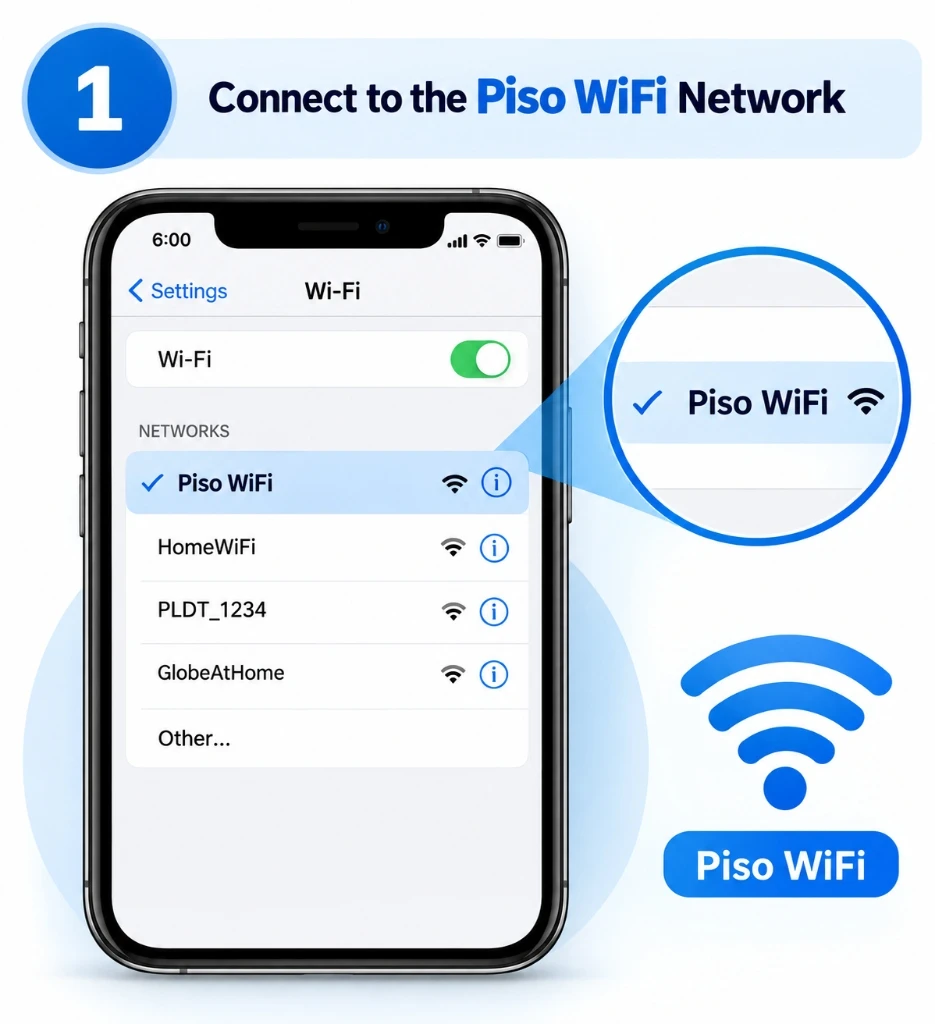
Connect to Piso WiFi Network
Before opening 10.0.0.1, your device must be connected to the wireless signal emitted by the vendo machine. The network SSID name depends on the machine or operator (e.g. LPB Piso WiFi, AdoPisoWiFi, or the local store brand).
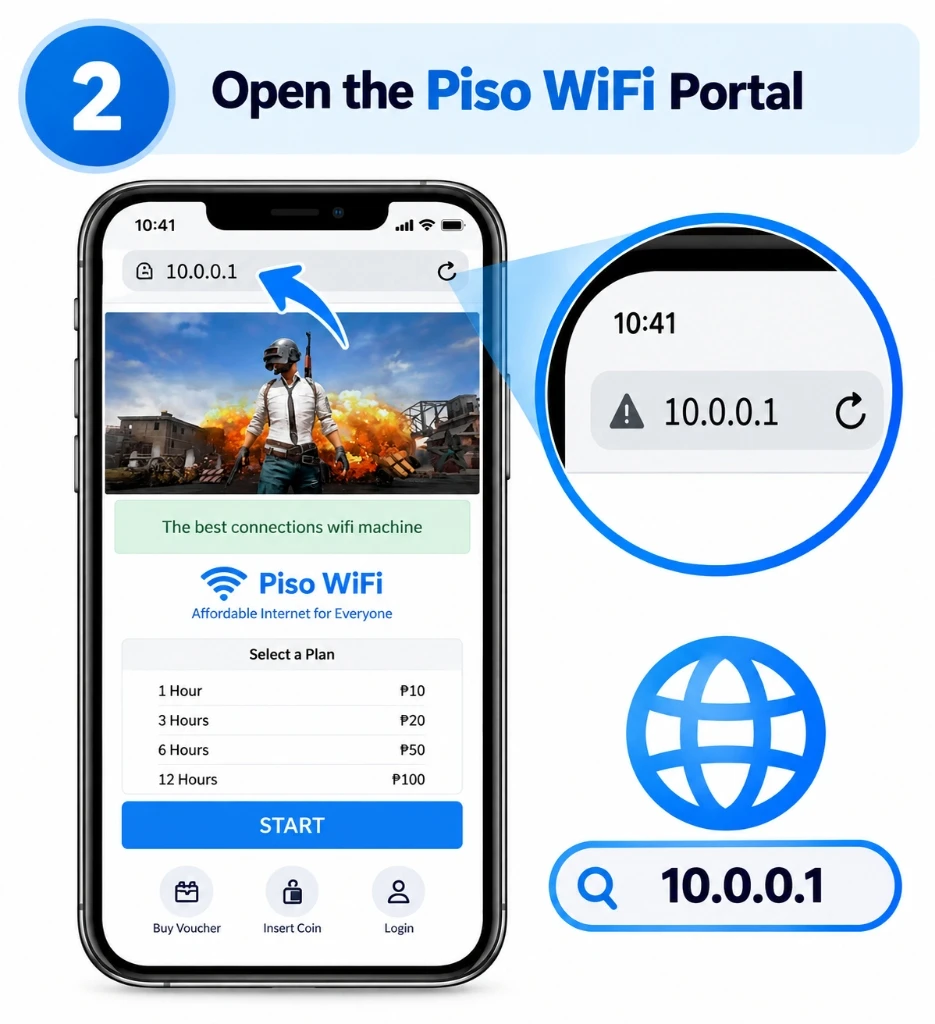
Open 10.0.0.1 in Your Browser
Launch Chrome, Safari, or your default browser, and enter the exact IP address directly into the top URL bar:
3 Critical Rules for Opening 10.0.0.1:
- Type it in the address bar: Do not enter 10.0.0.1 into Google Search, or you will end up on search results rather than the local portal.
- Use HTTP (not HTTPS): Most local routers run simple web servers on
http://. Forcinghttps://will result in a connection timeout. - Stay on the hotspot: Local IP addresses only respond while you remain actively connected to that machine's antenna.
What Does the 10.0.0.1 Piso WiFi Portal Show?
Once the local page loads, you will be greeted by the machine's interactive dashboard.
Depending on the machine's software (LPB, AdoPiSoft, JuanFi, or custom firmware), the 10.0.0.1 portal typically presents these controls:
- ✓ Current Session Status
- ✓ Remaining Time Countdown
- ✓ Insert Money Button
- ✓ Voucher Code Input
- ✓ Pause Time Button
- ✓ Resume Time Button
- ✓ WiFi Rate Tables
- ✓ Machine Operator Info
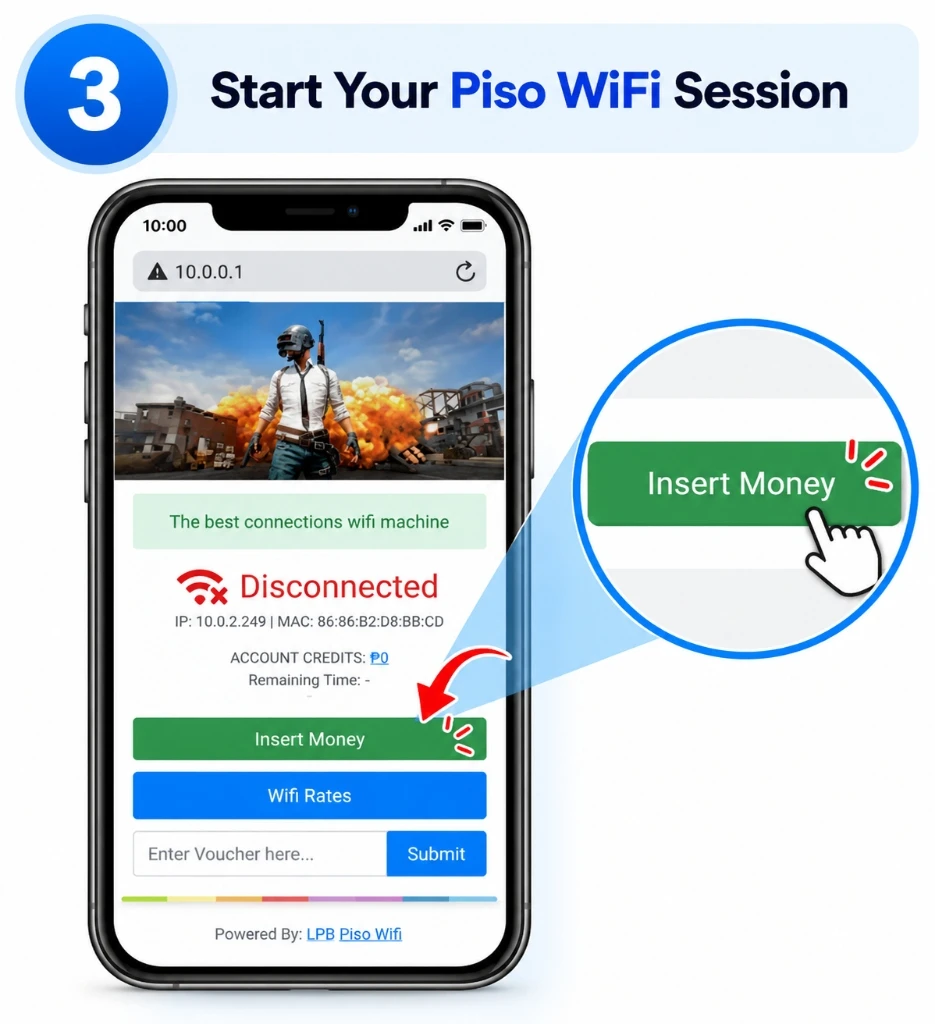
Start Your Piso WiFi Session
Before you can pause time, you must activate a session through coins, voucher pins, or online payment.
Coin Slot (Insert Money)
Tap Insert Money on the portal, drop your 1, 5, or 10 peso coins into the physical slot, and watch the credit counter rise.
Voucher Code
Enter your prepaid voucher pin into the Enter Voucher here... box and tap Submit.
E-Wallet / Online Pay
Some advanced vendo machines allow GCash or Maya top-ups directly through the captive screen.
How to Pause Piso WiFi Time Using 10.0.0.1
This is the most critical feature for saving your paid internet minutes when stepping away.
Open the Active Session
Open your browser and navigate back to http://10.0.0.1 on the exact device connected to the active session.
Check Remaining Time
Verify that your countdown clock is displaying remaining hours, minutes, and seconds (e.g. 01:24:35).
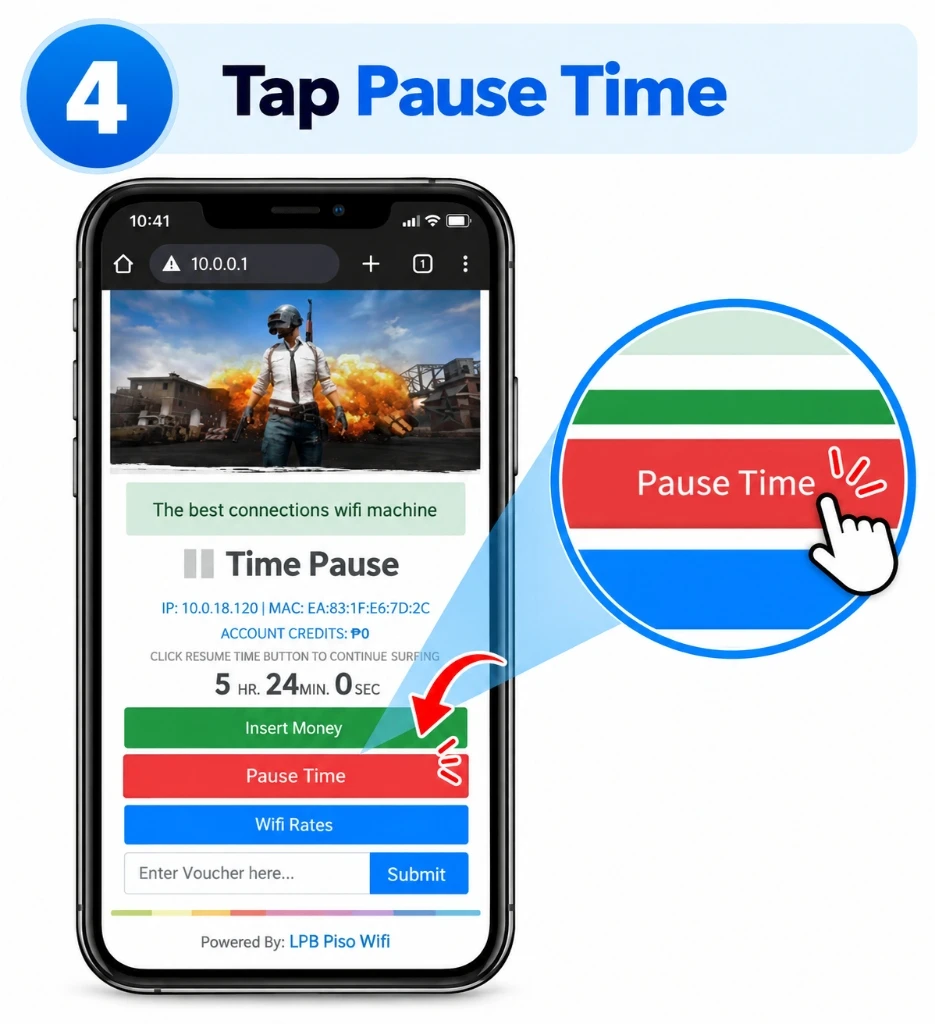
Find the Pause Time Button
Locate the control labeled Pause Time, Pause, or Time Pause.
Tap Pause Once
Click or tap the button once and wait 2–3 seconds for the portal script to process the request.
Confirm Session State
Ensure the portal status updates to PAUSED and that the countdown timer has frozen.
What Happens When You Pause Your Piso WiFi Session?
Understanding what actually changes when your timer halts.
Session Enters Paused State
The machine records the exact remaining seconds in its local database and marks your device profile as inactive.
Time Countdown Freezes
Your remaining credit stays preserved on the router, subject to whatever maximum pause expiration policy the operator sets.
Internet Access Halts
Your device will no longer access external websites or online apps until you click Resume on the local portal.
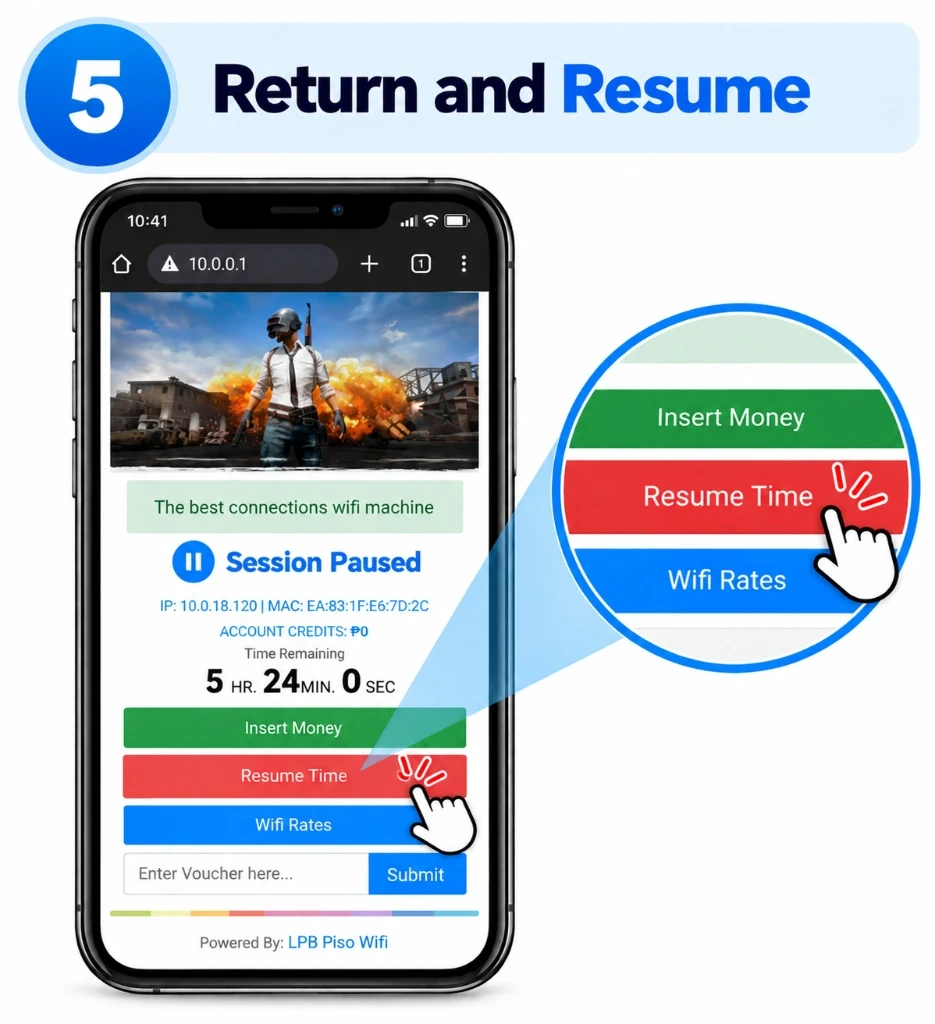
How to Resume Piso WiFi Time From 10.0.0.1
When you return to the vendo area and want to continue surfing the web, reactivate your session in 5 simple steps:
- Reconnect to the Wi-Fi: Join the same Piso WiFi hotspot on your original device.
- Open Browser: Navigate back to
http://10.0.0.1. - Locate Paused Status: Look for your frozen session indicator.
- Tap Resume: Select Resume Time, Resume, or Continue.
- Confirm Clock is Ticking: Verify that your internet connection is restored and timer counts down.
Can I Resume My Piso WiFi Time on Another Phone?
Usually no. Most Piso WiFi routers (like LPB, AdoPiSoft, and JuanFi) track customer sessions by the physical MAC address of your phone or laptop. If you start a session on an Android phone, pause it, and try to resume on an iPhone, the machine will not recognize the new phone as the owner of those paused minutes.
10.0.0.1 Login vs 10.0.0.1 Admin
Distinguishing customer session access from machine owner configuration.
| Feature | Customer Portal (10.0.0.1) | Admin Portal (10.0.0.1/admin) |
|---|---|---|
| Primary User | General public & Wi-Fi buyers | Vendo machine owner / technician |
| Access Path | http://10.0.0.1 | http://10.0.0.1/admin |
| Authentication | None (coin or voucher PIN) | Username & Admin Password |
| Key Controls | Insert Money, Pause Time, Resume, Rates | Pricing rates, sales reports, pause switches |
| Security Privilege | End-user session only | Root firmware & network control |
Which 10.0.0.1 Address Should You Use?
There is no universal IP for every single machine. Here are common variants used across the Philippines.
| Address | Purpose / Situation | Status |
|---|---|---|
http://10.0.0.1 | Main customer portal when machine is configured with 10.0.0.1 gateway | Standard |
http://10.0.0.1/admin | Administrative backend path on supported systems | Owner Only |
10.0.0.0.1 | Mistaken typo with extra zero; does not exist on IPv4 | Invalid Typo |
Device Gateway | Router address provided by DHCP when 10.0.0.1 does not open | Fallback |
192.168.1.1 | Used by some router-based or MikroTik configurations | Setup Dependent |
Is 10.0.0.0.1 the Same as 10.0.0.1?
10.0.0.0.1 is an invalid IPv4 address. Standard IPv4 addresses only contain four numerical octets separated by three periods. When users type an extra zero (creating 5 octets), browsers fail to resolve the IP address and display an error screen.
How to Find the Real Piso WiFi Gateway Address
When 10.0.0.1 refuses to open, follow these device-specific instructions to find the actual router address.
Android
Settings → Wi-Fi → tap the gear icon next to Piso WiFi → view Gateway.
Gateway: 10.0.0.1iPhone
Settings → Wi-Fi → tap the blue (i) info icon next to connected network → scroll to Router.
Router: 10.0.0.1Windows
Open Command Prompt → type ipconfig → check Default Gateway.
macOS
System Settings → Network → Wi-Fi → Details → TCP/IP → read Router.
Router IP10.0.0.1 Piso WiFi Not Opening? Try These Fixes
Follow this ordered checklist to get your portal loading within 60 seconds.
Check Your Wi-Fi Connection
Ensure your device has not silently fallen back to 4G/5G mobile data or connected to home Wi-Fi.
Type Address Directly in URL Bar
Enter http://10.0.0.1 in the browser top bar instead of searching on Google.
Turn Off Active VPN Services
VPNs route traffic through external servers, making local 10.0.0.1 IPs completely unreachable.
Disable Private DNS (Android)
Turn off Private DNS in Android Settings so local portal domain redirection functions normally.
Try Incognito or Another Browser
Cached assets or browser extensions can block captive portal popups. Try private browsing or Edge/Safari.
Verify Network Gateway Address
Check if the machine uses 192.168.1.1 or another subnet instead of 10.0.0.1.
Forget Network and Reconnect
Forget the Piso WiFi SSID in settings, turn Wi-Fi off and on, and reconnect to obtain a fresh lease.
10.0.0.1 Troubleshooting Table
| Problem | What to Check | Recommended Next Step |
|---|---|---|
| 10.0.0.1 won't open | Wi-Fi connection state | Verify device is connected to the Piso WiFi SSID |
| Portal redirects incorrectly | VPN / Adblocker | Disable VPN and reload http://10.0.0.1 |
| Page times out | Gateway IP address | Inspect router IP in network details |
| Pause button missing | Operator machine settings | Check with the vendo owner or try incognito |
| Session not visible | Device identity / MAC | Return to original device that bought session |
| Pause stopped working | Session restrictions | Check if machine reached maximum pause limit |
| Browser shows old page | Browser cache | Clear browser cache or use incognito tab |
| Wi-Fi connected but no internet | Active session timer | Open 10.0.0.1 and tap Resume Time |
Why Is There No Pause Time Button on 10.0.0.1?
If 10.0.0.1 opens fine but the Pause Time button is missing, here are the 6 primary causes:
Pause Time is Disabled
The vendo owner disabled the pause feature in their admin portal to prevent long-term station hogging.
Different Portal Interface
Some machines nest the control under a menu tab or scrollable tray below the rates table.
Session is Inactive
Pause controls only display when an active timer is running with positive credit balance.
Machine Restriction Applies
Certain firmware limits pausing to once every 30 minutes or restricts pause on promo vouchers.
Browser Cache Glitch
Old cached stylesheet or script may hide button elements. Hard-refresh or open incognito.
Device or MAC Issue
If your phone randomized its MAC address mid-session, the router may treat you as a new guest.
How to Use 10.0.0.1 Piso WiFi Pause Time in Chrome
Google Chrome is the most reliable browser for loading the captive portal and managing countdown pauses.
Connect
Connect device to Piso WiFi SSID.
Open Chrome
Open Google Chrome on Android, PC, or iOS.
Enter 10.0.0.1
Type http://10.0.0.1 in top address bar.
Pause / Resume
Tap Pause Time to preserve remaining minutes.
Can I Open 10.0.0.1 on Android and iPhone?
Yes, both operating systems can connect and pause time, but their captive portal behavior differs.
🤖 Android Devices
Android devices immediately show a “Sign in to network” notification. If tapped, it opens the webview. For full Pause Time features, open Chrome and visit http://10.0.0.1 directly. Turn off Private DNS if the portal stalls.
🍎 Apple iPhone & iPad
iPhones launch Apple's CNA (Captive Network Assistant) popup. If you close it, Wi-Fi may disconnect unless you choose “Use Without Internet”. Then open Safari and type http://10.0.0.1 manually.
10.0.0.1 Piso WiFi Pause Time by Platform
Compare pause behavior across the most popular Philippine vendo platforms.
| Platform | Portal / Interface | Pause Time Feature | Resume Flow | Notes |
|---|---|---|---|---|
| LPB Piso WiFi | Web portal (10.0.0.1) | Configurable by owner | Resume button on portal | Widely used; supports auto-pause rules |
| AdoPiSoft | Web portal (10.0.0.1) | Configurable by owner | Platform-specific button | Interface can vary by firmware version |
| PisoFi | Web & optional app | Configurable by owner | Dashboard controls | Check session drawer for pause toggle |
| JuanFi | Custom / MikroTik setup | Varies by setup | Varies by script | Operator determines all portal buttons |
What Can You Do From 10.0.0.1?
Everything possible through the customer portal dashboard.
Start a Session
Follow coin insertion or voucher entry prompts to initiate connection.
Check Remaining Time
View active session countdown clock showing exact minutes left.
Pause Active Time
Temporarily freeze session timer while you step away or eat.
Resume Time
Continue your previously paused minutes without paying twice.
View WiFi Rates
See how many minutes you receive per 1, 5, or 10 peso coin.
Access Admin Portal
Machine operators can manage system rates via /admin path.
What 10.0.0.1 Does NOT Do
10.0.0.1 is a local router IP address, not a magic hack or public website. Opening the address does not bypass coin payment requirements.
- ✕It does NOT give free internet access without inserting coins or vouchers.
- ✕It does NOT guarantee that Pause Time is enabled on that machine.
- ✕It does NOT allow normal customers to change operator settings or rates.
- ✕It does NOT provide the exact same interface on every single brand of vendo.
Is It Safe to Use 10.0.0.1 on Piso WiFi?
10.0.0.1 is an official private local IP, but the hotspot itself is a public shared network.
1. Verify Address
Always verify the URL bar says 10.0.0.1 and not an external third-party domain asking for personal info.
2. Avoid Banking
Never log into bank accounts or enter credit card credentials while connected to unencrypted public Wi-Fi.
3. No Unknown APKs
Never install APKs or third-party apps that claim to give “unlimited Piso WiFi pause time”.
4. Keep Vouchers Private
Do not share your printed voucher pins with others until you have redeemed the time on the portal.
Are You a Piso WiFi Vendo Owner?
If you own or manage the machine and customers cannot see the Pause Time button, the feature may need to be enabled or configured from the administrator portal. You can log in via http://10.0.0.1/admin to adjust pause timeouts and availability.
10.0.0.1 Piso WiFi Pause Time FAQs
Detailed answers to the 18 most common questions about the 10.0.0.1 portal.
What is 10.0.0.1 in Piso WiFi?
10.0.0.1 can serve as the local gateway or portal address on a Piso WiFi network. Users may access the local portal through it when connected to the relevant network.
How do I open 10.0.0.1 Piso WiFi?
Connect to the Piso WiFi network, open your browser (Chrome, Safari, or Edge), and enter http://10.0.0.1 directly into the address bar. Do not type it into Google Search.
How do I pause Piso WiFi time using 10.0.0.1?
Open your active session at 10.0.0.1, check your remaining time, and select Pause Time when the machine provides that option. Confirm that the timer stops before walking away.
How do I resume Piso WiFi time?
Reconnect to the same Piso WiFi network on the original device, open http://10.0.0.1, locate your paused session, and select Resume Time or Continue.
Why is the Pause button missing on 10.0.0.1?
Pause Time may be disabled by the machine operator, unavailable for your specific voucher/time tier, hidden by browser cache, or restricted by session rules.
Why is 10.0.0.1 not opening?
First check that your device is connected to the Piso WiFi network. Turn off any active VPN or Private DNS, use http:// rather than https://, and verify the network's actual gateway address.
Is 10.0.0.0.1 the correct Piso WiFi address?
The standard address discussed in this guide is 10.0.0.1. 10.0.0.0.1 is a common typing mistake with an extra zero. Always verify your connected network's actual router gateway.
Can I use Chrome for 10.0.0.1?
Yes. Chrome is the most widely supported browser for Piso WiFi portals. Simply connect to the hotspot and type http://10.0.0.1 into Chrome's top URL bar.
Can I open 10.0.0.1 on iPhone?
Yes. Connect your iPhone to the Piso WiFi network in Settings → Wi-Fi. If the captive portal does not pop up automatically, open Safari and type http://10.0.0.1 manually.
Can I open 10.0.0.1 on Android?
Yes. Connect to the Piso WiFi network, disable Private DNS if the captive screen stalls, and open http://10.0.0.1 in Chrome or your device's default browser.
Can I resume my time on another phone?
Usually no. Most Piso WiFi machines tie sessions to your device's hardware MAC address. You should return to the original phone or laptop that purchased the session.
Does disconnecting WiFi pause Piso WiFi time?
No! Simply turning off Wi-Fi or walking out of range does NOT pause your countdown timer. You must manually press the Pause Time button on the portal.
What is 10.0.0.1/admin?
On systems that support it, /admin provides an administrative interface for the machine owner to configure internet rates, hardware, and pause privileges, rather than the customer portal.
How do I find my Piso WiFi gateway?
On Android look for Gateway in your Wi-Fi details; on iPhone check Router under the (i) network info; on Windows open Command Prompt and type ipconfig to see Default Gateway.
Can every Piso WiFi machine use Pause Time?
No. The feature depends on whether the vendor owner has enabled pause functionality in their machine firmware (LPB, AdoPiSoft, JuanFi, etc.).
Does every Piso WiFi machine use 10.0.0.1?
No. While 10.0.0.1 is very common, some setups use 192.168.1.1, 10.0.0.254, or other private subnets depending on the router board.
What should I do if the portal loads but Pause Time does not appear?
Refresh the page in incognito mode to clear cached assets. If it still does not appear, verify that your session is actively running and ask the vendo owner if pause is enabled.
Is 10.0.0.1 a public website?
No. 10.0.0.1 is a private, local area network address. It cannot be opened from home internet or mobile data; you must be connected directly to the Piso WiFi signal.
Need to Pause Your Piso WiFi Session?
Connect to the Piso WiFi network, open http://10.0.0.1 in your browser, check your remaining minutes, and select Pause Time when available.
This comprehensive guide explains how the 10.0.0.1 local portal is commonly used with Piso WiFi sessions in the Philippines, including gateway discovery, pausing, session resumption, and resolving network connection failures. Piso WiFi hardware, firmware versions, and operator configurations vary between installations.