
Piso WiFi Pause Time App
Looking for a Piso WiFi Pause Time app to pause, check, or resume your Piso WiFi session? Not every Piso WiFi setup uses a dedicated mobile app. In many cases, customer controls are provided through a web-based captive portal that you open directly from your phone or computer. This guide explains the difference between an app and a browser-based portal, how to access Pause Time on Android and iPhone, what 10.0.0.1 has to do with the process, and what to do when the app or portal is not working.
Choose the correct access method: App or Web Portal
Do You Need a Piso WiFi Pause Time App?
A Piso WiFi system may provide its customer controls through a web portal rather than a dedicated mobile app. If the machine provides a web-based portal, you can access it using a browser on your phone or computer. The exact interface depends on the particular Piso WiFi installation.
Piso WiFi Pause Time App vs Browser
Understanding whether your machine expects a standalone mobile app or a standard web captive portal is key to getting Pause Time to work without risking malware.
| Feature | Mobile App | Browser / Web Portal |
|---|---|---|
| Installation | May require installation from store or APK | No app installation required |
| Android | Depends on available app for that vendor | Browser can be used if portal is provided |
| iPhone | Depends on available app in App Store | Browser can be used if portal is provided |
| Windows | Usually not the main mobile-app use case | Browser can be used seamlessly |
| 10.0.0.1 | May or may not be involved internally | Can be typed directly when local portal uses it |
| Updates | App-dependent (requires manual or store updates) | Portal-dependent (always displays current vendo firmware) |
| Login | App-specific credential or token | Portal-specific session detection |
| Pause Time | Depends on whether vendo supports it | Depends on whether vendo portal enables it |
| Universal? | No (different across vendo brands) | No (gateway & portal theme varies) |
How Does Piso WiFi Pause Time Work on a Phone?
Whether utilizing a supported mobile application or opening the default captive portal, mobile access follows a strict four-step sequence.
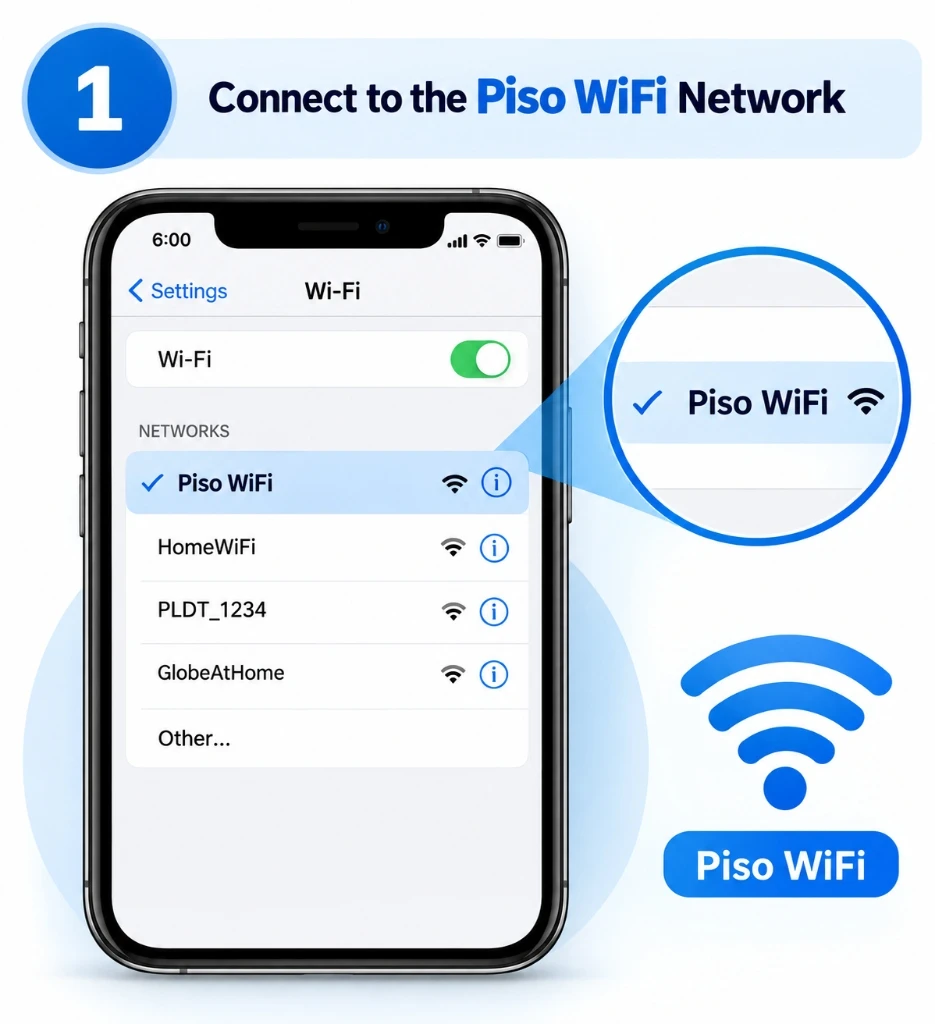
Connect to WiFi
Turn on Wi-Fi on your phone and select the machine's SSID. Maintain connection to establish local routing.
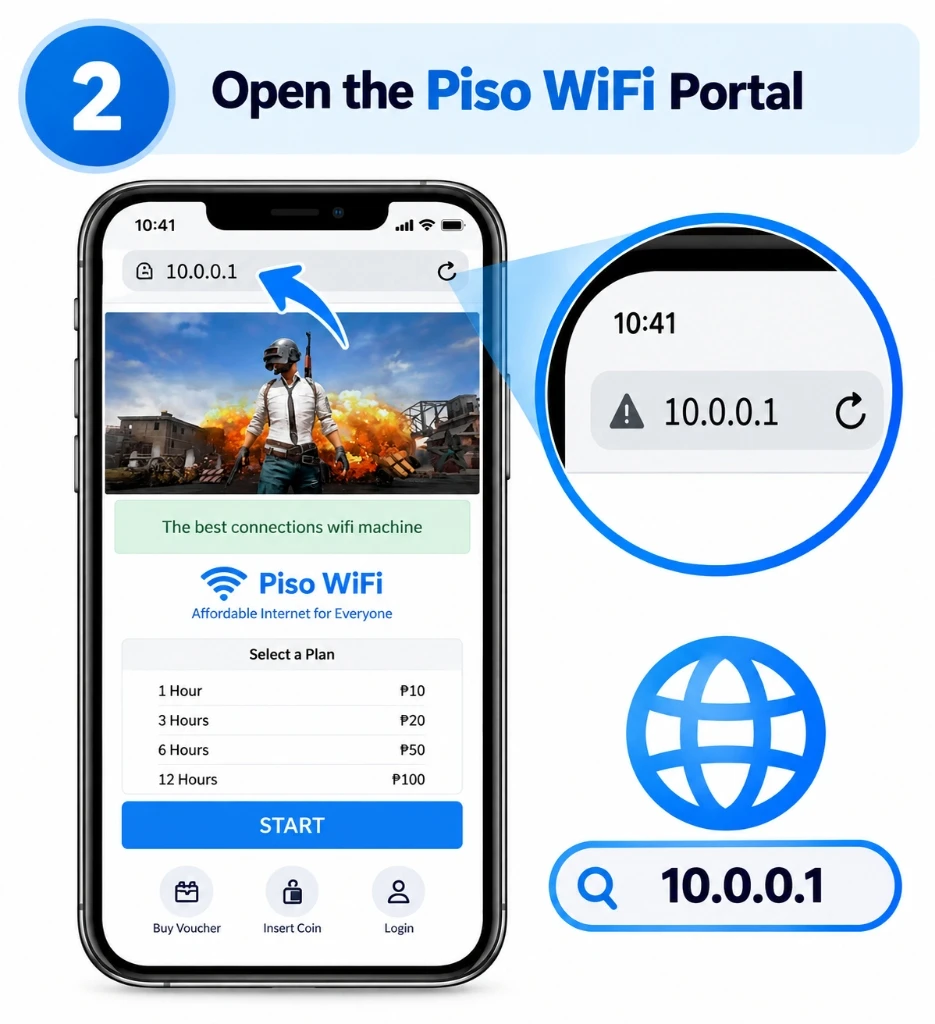
Open Access Page
Open the portal or access method provided by the machine (browser or verified companion app).
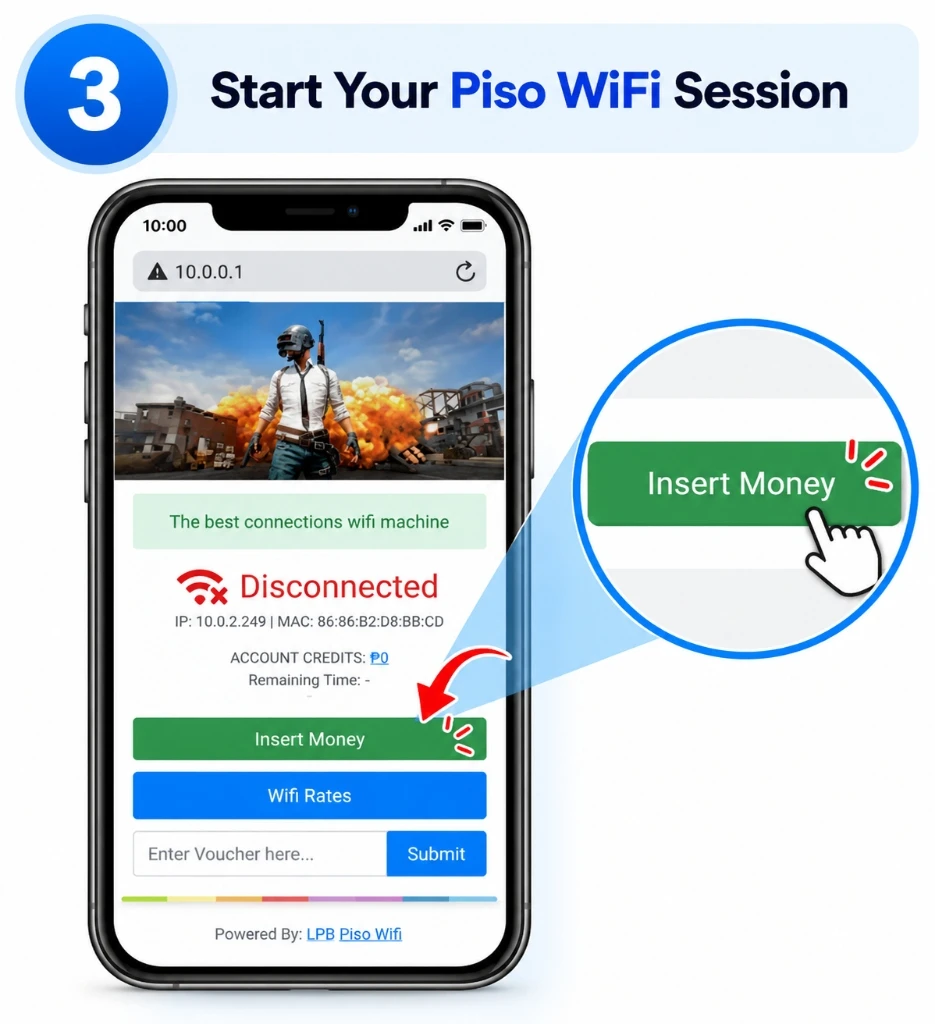
Identify Session
Make sure the portal or app recognizes your active session and displays your remaining time.
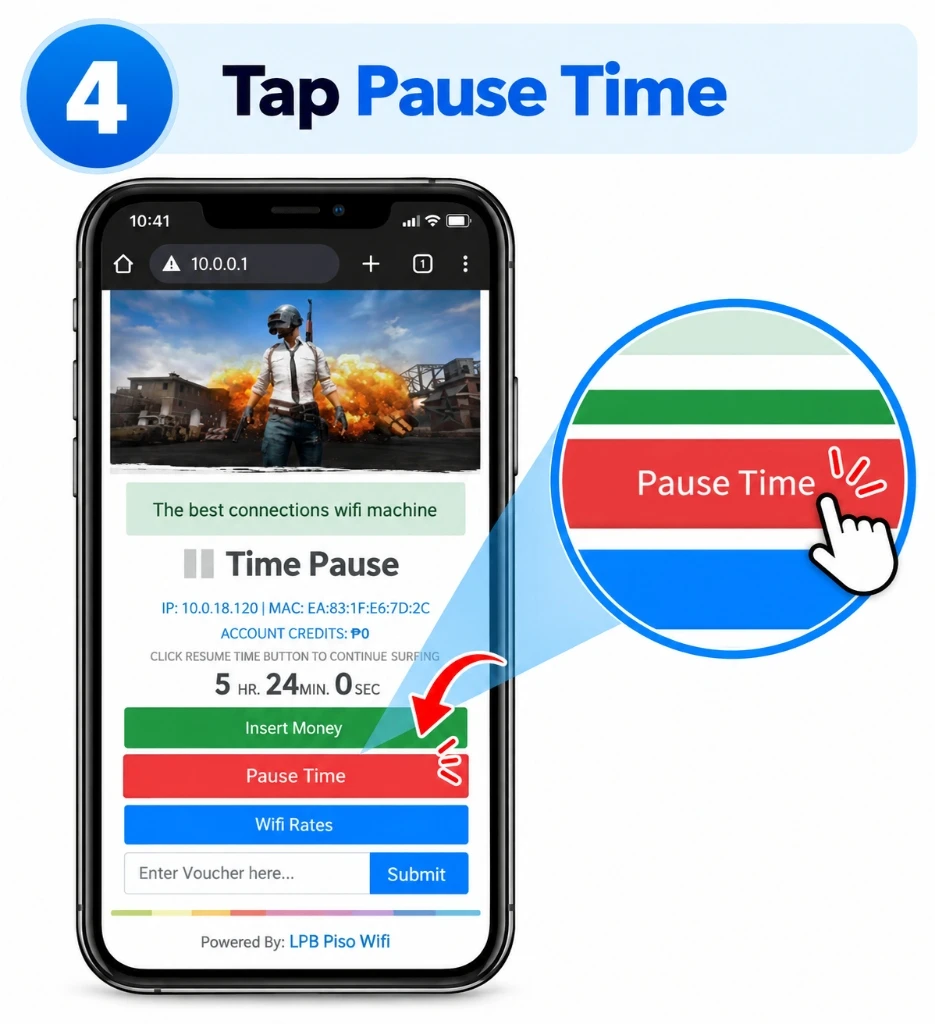
Use Pause Time
If the particular system supports Pause Time, tap the available Pause control button.
Can I Use 10.0.0.1 for the Piso WiFi Pause Time App?
10.0.0.1 is a local network address that may be used by some Piso WiFi configurations. It is not itself a mobile application. If the particular network uses 10.0.0.1 as its local portal address, you can open it directly in your phone’s browser while connected to the network.
http://10.0.0.1 directly into your mobile browser URL bar. Always use the address actually provided or used by your particular network gateway.Don't Search Google for 10.0.0.1
A local IP address is entered into the browser's address bar. It is not normally something you need to search for on Google. Searching Google leads to irrelevant third-party blogs or malicious ad links.
- Open Google Search
- ↓
- Search "10.0.0.1" or "pause app"
- ↓
- Click random external result
- ↓
- Fails to connect to your local machine
- Connect to Piso WiFi network
- ↓
- Open mobile browser (Chrome/Safari)
- ↓
- Type local address directly in URL bar
- ↓
- Open local customer portal
10.0.0.1 Piso WiFi Pause Time Guide
Need in-depth instructions on logging into 10.0.0.1, finding your gateway IP, and troubleshooting connection errors? Read our full portal guide.
Piso WiFi Pause Time App on Android
If you are using Android, you may not need a dedicated app if the Piso WiFi system provides a browser-based portal.
Android Access Steps:
- Connect to Piso WiFi network in Android Settings.
- Open Google Chrome or your default Android browser.
- Open the provided captive portal address (e.g. 10.0.0.1).
- Check your active session and remaining minutes.
- Look for the Pause Time button on the dashboard.
- Pause the session if the feature is enabled by the owner.
Android User Note:
Android users searching for a “Piso WiFi Pause Time app” should first determine whether the machine provides an official or supported app. If not, use the web portal supplied by the system.
Piso WiFi Pause Time App Download for Android
If you searched for “Piso WiFi Pause Time app download”, don’t assume that the first APK you find is the correct application. There is no universal rule that every Piso WiFi machine uses the same app.
- Machine and operator posted instructions on the vendo cabinet.
- Official app store source (Google Play Store), if one is provided.
- App name and verified developer/publisher identity.
- Whether the machine actually requires an app or uses a web portal.
- Whether the same service works directly through Chrome without installing APKs.
Piso WiFi Pause Time App on iPhone
iPhone users can use a browser-based Piso WiFi portal when the particular system provides one. iOS prevents sideloading raw APKs, making the browser portal the primary, safest option.
If the iPhone Portal Does Not Open:
- Confirm WiFi connection: Ensure you are connected to the network and not falling back to 4G/5G mobile data.
- Reopen the browser: Close and reopen Safari or Chrome.
- Enter the local portal address directly: Type
http://10.0.0.1in Safari. - Try another browser: If Safari hangs, try Google Chrome for iOS.
- Check whether the network uses a different gateway: In iOS Settings → Wi-Fi → tap the (i) icon next to the network and look at "Router".
Piso WiFi Device Guide
Detailed step-by-step device walkthroughs for iPhone, Android, and Windows laptops.
Can I Use Chrome Instead of a Piso WiFi App?
Yes, when the Piso WiFi system provides a browser-based portal. Chrome can be used to access a local Piso WiFi portal from Android, Windows, and other supported devices.
Piso WiFi Pause Time on Windows
On Windows, the browser is generally the relevant access method when the Piso WiFi system provides a web portal.
Windows Steps:
- Connect to the Piso WiFi network in Windows Taskbar.
- Open Microsoft Edge or Google Chrome.
- Enter the portal address (e.g.
http://10.0.0.1). - Check active session time.
- Use Pause Time if available on the dashboard.
If portal does not open: Check network gateway via ipconfig in Command Prompt, then try another browser.
LPB Piso WiFi Pause Time App
If your Piso WiFi system uses LPB, the access method depends on the specific LPB setup. Don’t assume that an app designed for another Piso WiFi system will work with LPB.
What to Check on LPB Systems:
LPB Piso WiFi Pause Time Guide
Learn how LPB Piso WiFi Pause Time, login, 10.0.0.1 portal access, and session checks work.
Piso WiFi Pause Time App Login
App login behavior depends on the particular application and Piso WiFi system. If you are actually using a browser-based portal, don't look for an app login screen. Open the customer portal instead.
Before Troubleshooting Login:
Customer App vs Piso WiFi Admin Access
| Dimension | Customer Access | Admin Access |
|---|---|---|
| Purpose | Access your personal session | Manage machine & network system |
| Remaining Time | Check remaining minutes | Configure machine rates and bandwidth |
| Pause Time | Pause personal session if supported | Administrative toggle & rate controls |
| Resume Session | Resume your paused time | Reset machine, reboot, or update firmware |
| Intended Users | Intended for regular customers | Intended for authorized vendo operators |
Piso WiFi Pause Time App Not Working
If your companion app or portal crashes, freezes, or fails to connect, follow these six systematic verification steps.
Check Connection
Make sure your phone is actively connected to the relevant Piso WiFi network, not cell data.
Verify App Requirement
Check whether the app is actually required or if the machine uses a browser web portal.
Restart the App
Force close the app, clear temporary app cache in phone settings, and relaunch.
Check Browser Portal
Open Chrome or Safari and navigate to the portal (e.g. 10.0.0.1) as an immediate fallback.
Verify Active Session
The app cannot show Pause Time if your coins were not registered or your session expired.
Check the Machine
If multiple customers cannot access the service, the machine or upstream ISP may be offline.
Piso WiFi Troubleshooting Guide
Having deeper connectivity issues? Access our complete troubleshooting walkthrough.
Piso WiFi App Has No Pause Button
Installing or opening an app does not guarantee that the Pause Time control will be available on your dashboard.
- Pause Time feature isn't supported by the vendo hardware.
- The operator disabled the Pause setting.
- Your session has not started or is already expired.
- The vendo uses a custom theme that hides the control.
Piso WiFi App Timer Not Stopping
If you press Pause but the countdown timer appears to continue, check whether the session status changed from ACTIVE to PAUSED.
ACTIVE → Press Pause → Check Status: PAUSEDIf it remains ACTIVE, the pause request was not accepted. Don’t immediately uninstall the app or download another app.
Troubleshoot Timer Not Stopping →App Cannot Resume Session
If the session was paused but the Resume control does not appear or produce internet access, check the following variables:
- Phone is still connected to the same machine SSID.
- Portal recognizes your original session token / MAC address.
- Pause status has not expired (some vendos auto-expire paused sessions).
What If There Is No Piso WiFi App?
You may still be able to access the service through a browser if the Piso WiFi system provides a web portal. This is especially useful if you are using Android, iPhone, or Windows and do not want to install an additional application.
Should You Download a Piso WiFi Pause Time APK?
Be careful with APK downloads. A search result containing “Piso WiFi Pause Time APK” does not prove that the file belongs to your Piso WiFi system.
🚩 Dangerous APK Red Flags to Watch Out For:
Before Installing a Piso WiFi App (Checklist Table)
| Question to Ask | What to Check |
|---|---|
| Is an app actually required? | Check posted machine instructions and operator labels. |
| Who published it? | Verify the developer and publisher credentials in the store. |
| Where is it hosted? | Use a trusted source (Google Play Store) rather than random file hosts. |
| Does the machine support it? | Confirm vendor system compatibility (e.g. LPB vs JuanFi). |
| Is there a browser portal? | Try supported web access in Chrome or Safari first. |
| Does it require admin access? | Avoid apps requesting administrative credentials or root access. |
| Does it ask for unusual permissions? | Review permissions before granting phone access. |
10.0.0.1 and the Piso WiFi App: What’s the Difference?
It is common to confuse IP addresses, software browsers, and native applications. Here is how they relate in a Piso WiFi environment:
10.0.0.1
A local network IP address assigned to the vendo router hardware gateway.
Browser
Standard software (Chrome, Safari) used to open local web portal pages.
App
A separate native software application that may or may not be provided by the vendor.
Pause Time
A firmware feature provided by the particular Piso WiFi system, if supported and enabled.
Should You Use the App or Browser?
Use this practical scenario guide to decide whether to open a browser portal or launch a vendor application.
| Situation | Practical Approach |
|---|---|
| Official supported app exists | Use the supported app as instructed by the operator. |
| No app provided | Use the web portal in Chrome or Safari. |
| App won’t work or crashes | Test the web browser at 10.0.0.1 immediately. |
| Browser won’t work | Check network connection and local gateway IP. |
| Android device | App or browser, depending on system configuration. |
| iPhone device | App or Safari browser portal, depending on system. |
| Windows laptop | Browser is the primary relevant access method. |
| 10.0.0.1 portal | Open directly in your web browser URL bar. |
| Pause button missing | Check system configuration and active session status. |
| Login problem | Verify whether customer session or admin interface is needed. |
How to Access Piso WiFi Pause Time on Your Phone
Three direct workflows depending on your mobile operating system and system availability.
- 1. Connect WiFi
- ↓
- 2. Open Chrome
- ↓
- 3. Open portal (10.0.0.1)
- ↓
- 4. Check active session
- ↓
- 5. Pause if available
- 1. Connect WiFi
- ↓
- 2. Open Safari / Chrome
- ↓
- 3. Open portal
- ↓
- 4. Check active session
- ↓
- 5. Pause if available
- 1. Install supported app
- ↓
- 2. Open app
- ↓
- 3. Connect / access session
- ↓
- 4. Detect minutes remaining
- ↓
- 5. Pause if available
Common Piso WiFi App Problems & Solutions
Quick reference table mapping every common app failure to its root cause and detailed guide.
| Problem | First Thing to Check | Related Guide |
|---|---|---|
| App won’t open | App compatibility, device storage, or force close | Troubleshooting |
| App can’t login | Correct session recognition vs customer token | Troubleshooting |
| App has no Pause button | Feature availability and active session status | Main Pause Guide |
| Timer keeps running | Session status changed to Paused on router | Troubleshooting |
| Resume missing | Session state, expiration, and WiFi connection | Troubleshooting |
| 10.0.0.1 won’t open | Network connection and actual gateway subnet | 10.0.0.1 Guide |
| Chrome works but app doesn’t | App-specific bug; use Chrome web portal | Chrome Guide |
| App unavailable | Fallback to browser captive portal | Main Guide |
| Android issue | WiFi network, Chrome cache, captive login | Device Guide |
| iPhone issue | Safari URL entry, private WiFi address toggle | Device Guide |
| LPB issue | LPB portal theme and firmware configuration | LPB Guide |
App Troubleshooting Decision Flowchart
Follow this logical diagnostic tree to isolate where the connection or pause functionality breaks down.
Connect to Piso WiFi SSID in phone settings first.
Proceed to verify application launch.
Check app source / fallback to browser portal at 10.0.0.1.
Proceed to verify session detection.
Check portal connection or insert coins to start time.
Proceed to look for Pause Time control.
Machine operator has disabled Pause Time for this vendo.
Press [ Pause Time ] button on screen.
Troubleshoot portal session, browser cache, or router connection.
✅ Done! Your session time is successfully paused.
Explore Dedicated Piso WiFi Guides
Connect directly with our authoritative topic-specific walkthroughs.
App Still Not Working?
If you’ve checked the app, browser, and network but Pause Time still doesn’t work, use the complete troubleshooting guide.
Want to Understand Pause Time First?
Read the complete guide to how Piso WiFi Pause Time works, including Pause, Resume, session time, and common controls.
Using 10.0.0.1?
If your Piso WiFi system uses 10.0.0.1, use the dedicated guide for portal access, login, and Pause Time.
Prefer Chrome?
Learn how to access the Piso WiFi portal in Chrome and troubleshoot browser-related cache and portal redirect problems.
Using LPB Piso WiFi?
Go to the dedicated LPB guide for LPB-specific Pause Time, login, and portal information.
Piso WiFi Pause Time on Android, iPhone & Windows
If your problem is specific to your device rather than the app itself, use the comprehensive device guide.
Piso WiFi Pause Time App FAQs
Frequently asked questions regarding Piso WiFi apps, APK security, browser portals, and mobile pausing.
1. Is there a Piso WiFi Pause Time app?
There is not necessarily one universal app for every Piso WiFi installation. Some systems may provide app-based access, while others provide a browser-based portal.
2. Do I need an app to pause Piso WiFi time?
Not necessarily. If the particular system provides a web portal with Pause Time, you can use a browser (like Chrome or Safari) on your device instead.
3. How do I download the Piso WiFi Pause Time app?
First confirm that your particular Piso WiFi system actually provides a supported app. Do not download random APKs simply because they contain the words “Piso WiFi Pause Time.”
4. Can I use Piso WiFi Pause Time on Android?
Yes, when the particular system provides a supported mobile app or browser-based access method.
5. Can I use Piso WiFi Pause Time on iPhone?
Yes, if the system provides a compatible iOS app or a responsive browser-based captive portal.
6. Can I use Chrome for Piso WiFi Pause Time?
Yes, when the Piso WiFi system provides a web-based portal that can be accessed through Chrome at its local IP address.
7. Is 10.0.0.1 the Piso WiFi app?
No. 10.0.0.1 is a local network IP address, not an app. You enter it into your web browser address bar.
8. Can I access Piso WiFi Pause Time through 10.0.0.1?
If the particular Piso WiFi network uses 10.0.0.1 as its local gateway portal address, you can access the customer portal through your browser.
9. Why is my Piso WiFi app not working?
Check your WiFi connection, verify app compatibility, check active session status, and see whether the machine provides a browser-based portal alternative.
10. What if the app has no Pause button?
Pause Time may not be enabled by the operator, the session may not be active yet, or the system may utilize a different portal theme or user interface.
11. Why does my timer keep running after I press Pause?
Check whether the portal changed the session status to Paused. If the status remains Active, the pause request was not accepted by the router controller.
12. Can I use the browser instead of the app?
Yes. If the Piso WiFi system provides a web portal, opening it in Chrome, Safari, or Edge is generally the most stable and universal method.
13. Is every Piso WiFi app safe?
No. Use only verified apps from official app stores or operator instructions. Avoid unverified third-party APKs promising hacks or unlimited time.
14. Is there an official Piso WiFi app for every machine?
No universal app should be assumed. The supported access method depends entirely on the vendo hardware vendor (LPB, AdoPiSoft, JuanFi, etc.).
15. Can I pause Piso WiFi time without the app?
Yes, if the system provides Pause Time through its local web captive portal, you can pause directly from your browser without any app installed.
16. Why won’t 10.0.0.1 open on my phone?
Check that you are connected to the machine’s WiFi without cellular data or VPN active, and verify that 10.0.0.1 is actually the local gateway address used by that network.
17. Can I use the Piso WiFi app on Windows?
Most desktop users connect directly through a web browser. Very few systems build dedicated Windows desktop applications.
18. Is the Piso WiFi Pause Time app free?
Customer portals and legitimate vendor companion apps do not charge to download. Beware of third-party scam apps asking for payment or subscriptions.
19. Why is the app asking for admin login?
Customer session access and administrator access are completely different. If you are a customer, you should not attempt administrative login.
20. What should I do if both the app and browser don’t work?
Verify your physical WiFi connection, check your assigned gateway IP, reconnect to the network, and follow our comprehensive troubleshooting guide.
Related Piso WiFi Guides
Explore our complete library of technical walkthroughs for operators and users.
Need Help With Piso WiFi Pause Time?
Whether you’re using an Android phone, iPhone, Windows PC, Chrome, or a supported Piso WiFi app, start by identifying how your particular system provides access. If the app is unavailable or doesn’t work, a browser-based portal may be the appropriate alternative. If neither works, check the network, portal address, and session status before assuming the app is the problem.