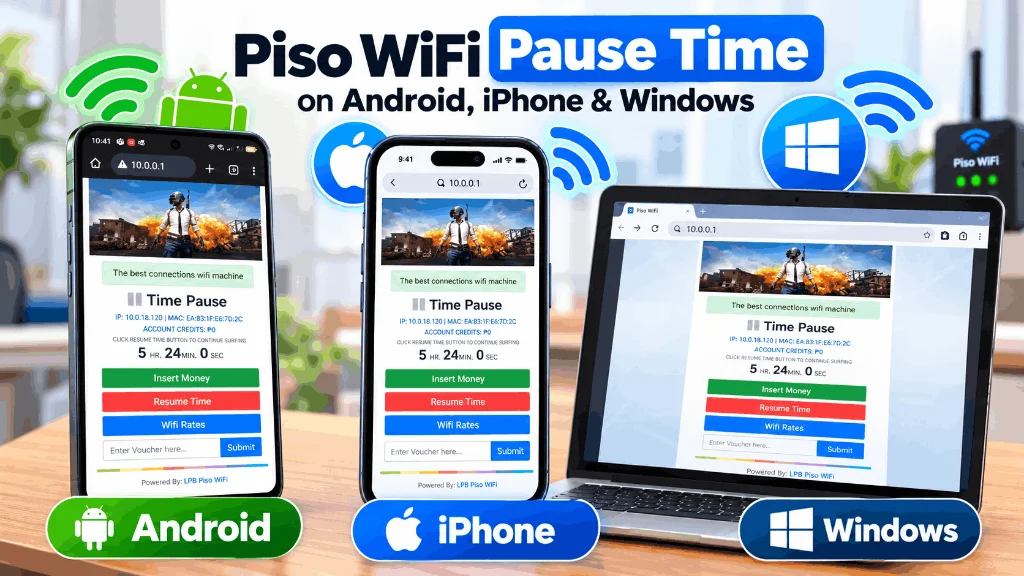
Piso WiFi Pause Time on Android, iPhone & Windows
Different operating systems interact with captive Piso WiFi portals in unique ways. Whether you are using an Android phone, Samsung Galaxy, Apple iPhone, or Windows laptop, this guide provides exact step-by-step instructions to connect, pause, and resume your session safely.
1. Android Devices (Xiaomi, Realme, Vivo, Oppo)
Android devices will usually trigger a “Sign in to network” notification upon connecting to the Piso WiFi SSID. For full stability and timer controls, use Google Chrome rather than the built-in mini browser.
- Connect to Wi-Fi: Open Settings → Wi-Fi and select the Piso WiFi network.
- Disable Private DNS: Go to Settings → Network → Private DNS → select “Off” to allow local IP redirection.
- Use Phone MAC: In your connected Wi-Fi settings, switch MAC Address from “Randomized” to “Device / Phone MAC” so your pause state doesn't get lost.
- Open Chrome: Enter
http://10.0.0.1directly into the Chrome address bar. - Tap Pause Time: View your active session and tap Pause Time to save your remaining credits.
2. Apple iPhone & iPad (iOS)
Apple devices feature the Captive Network Assistant (CNA). If you cancel or close this popup, your iPhone will disconnect from the Wi-Fi. Follow these steps to keep your connection alive:
- Connect: Open Settings → Wi-Fi → tap the Piso WiFi network name.
- Handle CNA: When the login screen pops up, if you plan to use Safari or Chrome, tap Cancel and choose “Use Without Internet”.
- Disable Private Wi-Fi Address: Tap the “i” icon next to the network and turn off “Private Wi-Fi Address” so your session remains persistent.
- Open Safari or Chrome: Type
http://10.0.0.1into the address bar. - Pause / Resume: Select Pause Time when ready to leave and return to the same URL to resume.
3. Windows 10 & 11 Laptops
Windows laptops provide the most reliable portal browsing experience since desktop browsers do not force aggressive MAC randomization by default.
- Click the Wi-Fi icon on your taskbar and join the Piso WiFi network.
- Launch Google Chrome, Microsoft Edge, or Firefox.
- Navigate to
http://10.0.0.1in the URL bar. - Bookmark your active session page so you can easily return and tap “Resume”.
Explore Dedicated Platform Guides
Check out our in-depth guides for specific IP gateways, browsers, and vendor platforms: